
Settings
The Library, Teaching, Agent, Export and Shortcuts tabs: folder and git options, the lecture rhythm and breaks, the Oberik project id, key and subject, and where each is stored.
Settings (⌘,) has five tabs: Library, Teaching, Agent, Export and Shortcuts.
Library#
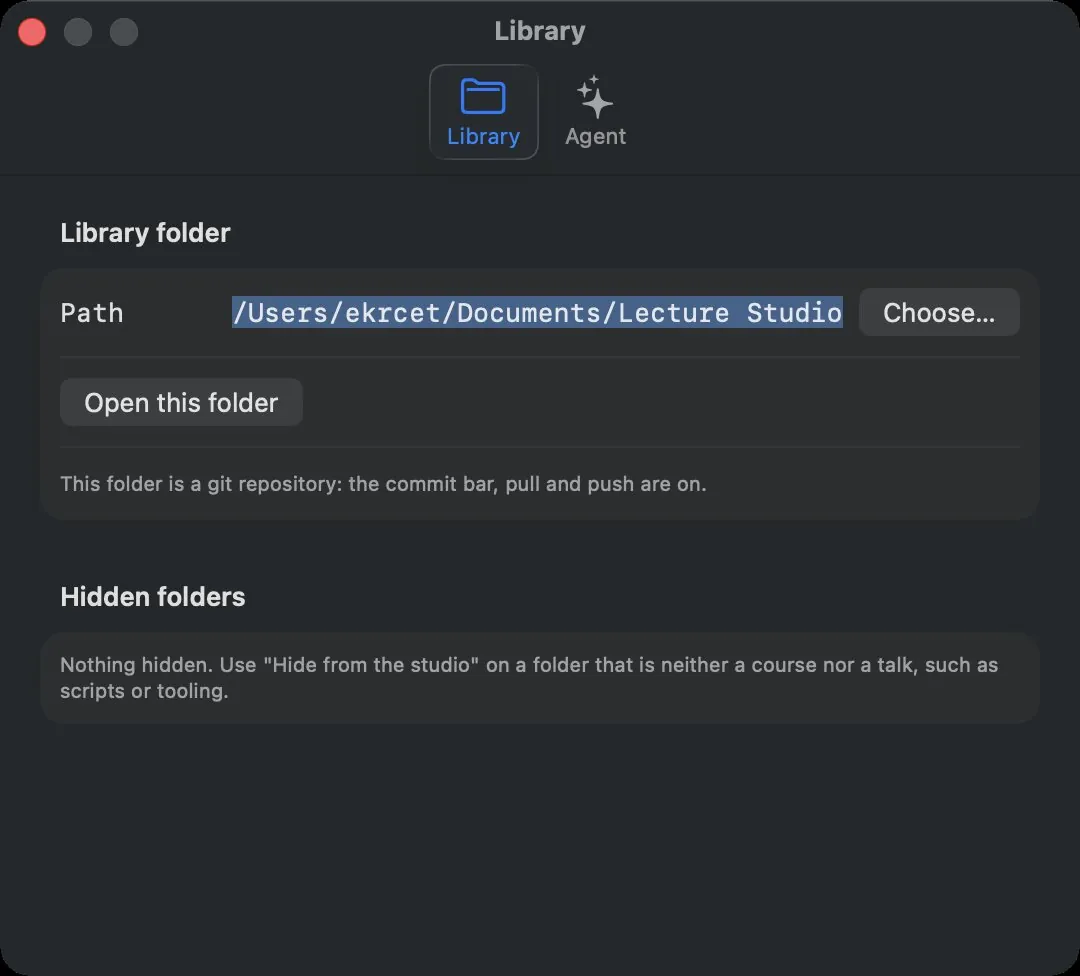
| Control | What it does |
|---|---|
| Path and Choose… | The library folder. Type a path or pick one. |
| Open this folder | Switches the app to that folder. |
| Track changes with git | Runs git init in the folder. Shown only when the open library is not a repository yet. |
| Note | Whether the folder is a git repository, and what that means for the commit bar. |
| Hidden folders | Top-level folders hidden with Hide from the studio, each with Show again. |
Teaching#
The lecture formats presenter mode can run, and the one every lecture starts with. A format is a name you know it by, a symbol, and its rhythm: teaching and break minutes in the order you teach them.
| Control | What it does |
|---|---|
| Lecture formats | One row per format: the symbol menu (24 symbols, or None), the name (up to 24 characters), and the rhythm field — 20 5 20 15 is twenty minutes on, five off, twenty on, fifteen off. The line under the name reads the rhythm back and says how long one round is. ⊖ removes a format; the last one stays. |
| Add format | A new row, 20 5 20 15, ready to be renamed. |
| Start lectures with | The format every lecture begins with. One picked in presenter mode lasts for that lecture only. |
| Hand-started break | How long the break you start yourself with the Break button lasts. |
| Auto break | Hands the room over on its own when a block runs out: the break card goes up on the audience screen for the minutes the rhythm gives it, and the break's end arms the next block. With it off the block still counts down and the break is yours to take. |
Five formats ship: Pomodoro (20 5 20 15), Short sprints (25 5 25 5 25 5 25 15), Two halves (45 15 45 15), One sitting (50 10) and Seminar (90 15). A rhythm set in an earlier version is carried over on the first launch: the matching built-in format becomes the default, or the rhythm lands as My rhythm.
Agent#
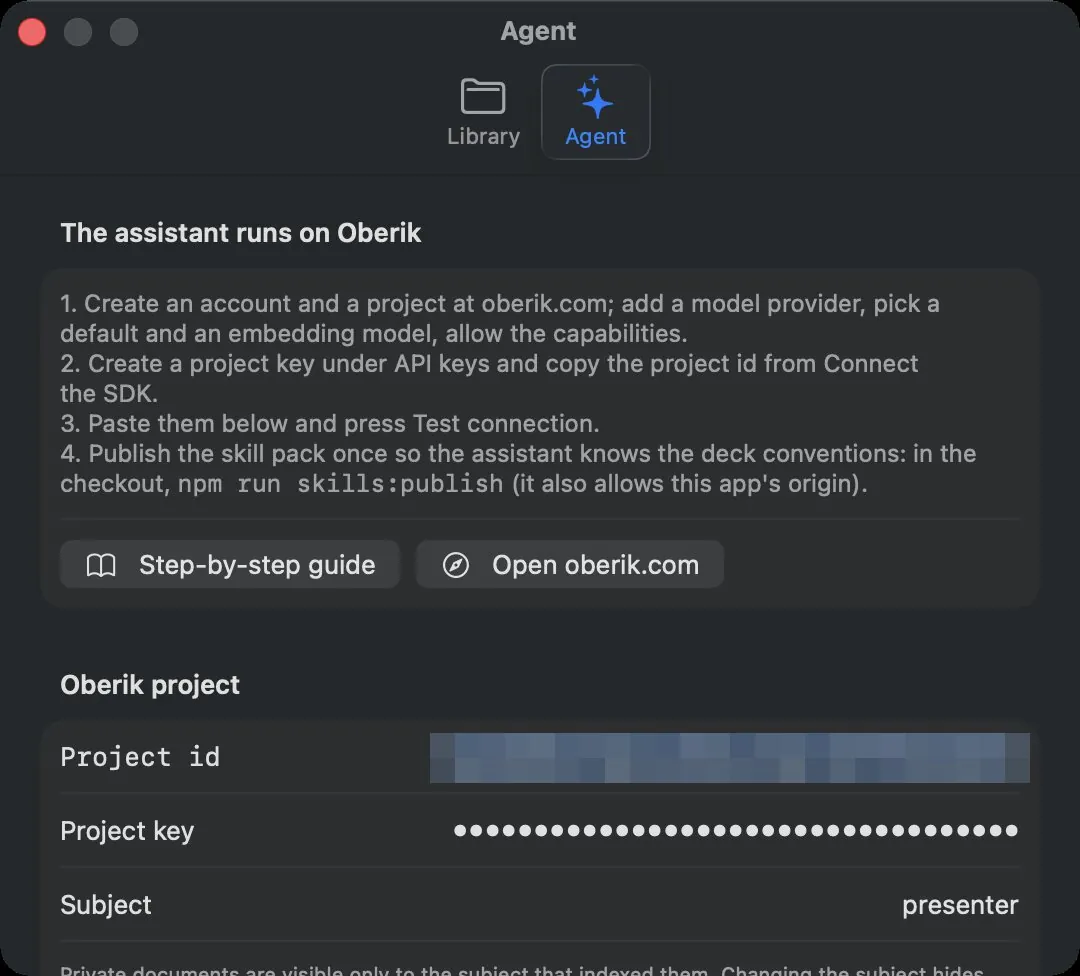
| Control | What it does |
|---|---|
| The four steps | The short version of Connect the assistant. |
| Step-by-step guide | Opens the Oberik setup guide on this site. |
| Open oberik.com | Opens Oberik in the browser. |
| Project id | The project's UUID. |
| Project key | The pk_… key. Masked; stored in the Keychain. |
| Subject | The name your indexed sources belong to. Default presenter. Changing it hides the sources indexed so far. |
| Save | Stores the three values. |
| Import from .env | Reads them from a .env in a checkout of the app's repository (development). |
| Test connection | Mints a token and asks the assistant for a word; reports the capabilities and the reply, or the error. |
Export#
| Control | What it does |
|---|---|
| The status line | The marp-cli the app found, its version and where it came from (your shell's PATH, Homebrew, npm, a node version manager, the npx cache, or npx itself), with the command it runs; or why none was found. |
| Look again | Searches again, after an install. |
| marp-cli path and Choose… | A marp executable, or the folder that holds it, tried before everything else. Empty means "find it". |
| The browser line | The browsers in Applications that marp-cli can print with. |
| Browser executable and Choose… | A browser marp-cli cannot find on its own, passed as --browser-path. |
| The LibreOffice note | Whether the experimental editable PowerPoint is available. |
See Export.
Shortcuts#
One row per command that has a key: Save, Export…, Refresh Library, Start Presenting, Next Slide, Previous Slide, End Presentation, Break (start or end), Lecture Timer (start or stop), Show or Hide Chat, Preview and Editor, and Speaker Notes.
| Control | What it does |
|---|---|
| The shortcut button | Click it and type the new shortcut. ⎋ keeps the old one, ⌫ removes it (None). |
| Reset | Next to a changed row: back to the default. |
| Reset all to defaults | Every row back to its default. |
A key is refused, with a line under the list saying why, when it would get in the way of typing (a bare letter outside the presenter keys), when another action already has it, or when a fixed menu item such as Quit ⌘Q or Undo ⌘Z owns it. Menus and the presenter's buttons follow a change at once; the defaults are listed under Keyboard shortcuts.
Where settings live#
| Setting | Storage |
|---|---|
| Library path, last course, unit and file | App preferences |
| Panel order, hidden panels, panel widths, speaker notes toggle | App preferences |
| Card sort and custom order | App preferences |
| Getting started card dismissed | App preferences |
| Chat model choice and the server session per scope | App preferences |
| Project id and subject | App preferences |
| The lecture formats and the default one, the hand-started break length, auto break | App preferences |
| Changed keyboard shortcuts | App preferences |
| Project key | macOS Keychain, service com.akademi.lecture-studio. A source build keeps it in a file under ~/Library/Application Support/LectureStudio/ instead. |
| Presenter profile and hidden folders | studio.json in the library |
| Chat history | ~/Library/Application Support/LectureStudio/chats/ |
The LECTURE_REPO environment variable, when set for the process, overrides the saved library path for that launch.