
Introduction
What Lecture Studio is, what it needs, and how these docs are organized.
Lecture Studio is a native macOS app for teachers and speakers who write slide decks from their reading sources. A deck is a Marp Markdown file in a folder you own. The app gives that folder a library view, a three-panel workspace with a live preview, a presenter mode, and a writing assistant that reads your sources and cites them.
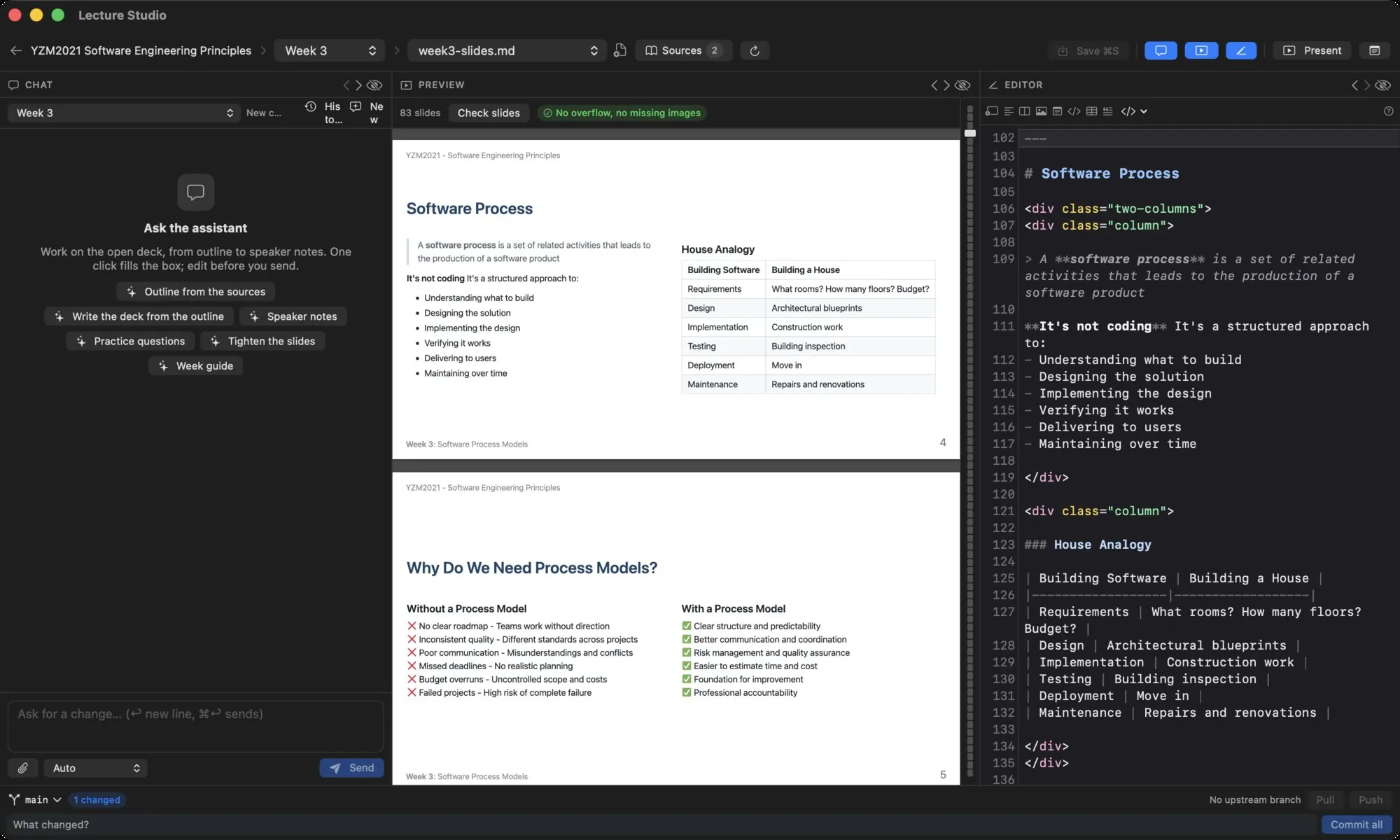
What it does#
- Keeps courses and talks as folders. A course is a folder of numbered units (weeks, sessions, modules and so on) with a syllabus and a context file. A talk is one deck. Everything is plain files; git is optional.
- Renders Marp Markdown live. The editor is CodeMirror with Marp helpers; the preview is what Marp renders; a slide rail and a "Check slides" scan flag text past the slide edge and missing images.
- Writes from your sources. Readings, papers, notes and old slides go into
sources/folders and are indexed. The assistant searches them and cites them under each answer: outlines, decks, speaker notes, practice questions, an instructor guide. - Presents. An audience window with the slide and a break countdown, plus a presenter window with the next slide, the notes and a clock.
- Stays in sync. The library folder is watched, so changes from another editor, a git pull or a sync client show up on their own. When the folder is a git repository, a commit bar handles commit, push and pull.
Requirements#
| macOS | 15 Sequoia or later |
| Chip | Apple silicon |
| Assistant | An Oberik project you own, free to create. Without it the editor, preview, presenter mode and git bar all work; the chat and source search do not. |
| Version | These docs describe version 0.1.21. The app is free during the beta. |
How these docs are organized#
- Getting started covers installing the app, choosing a library folder, and connecting the assistant.
- Library explains the library screen, courses, talks, terms, units, the presenter profile, sources, and what lives on disk.
- Writing is the workspace: editor, preview, Marp decks, and the assistant.
- Presenting is presenter mode and the Export button, which hands the deck to marp-cli for a PDF or a PowerPoint.
- Sync covers git and the library watcher.
- Reference lists every keyboard shortcut, menu item and setting, plus troubleshooting.
Prefer a guided tour?
The Oberik setup guide walks through connecting the assistant with screenshots of the Oberik side. The blog has longer guides on Marp, speaker notes and exporting.
Where to get help#
The app is open source at github.com/ekremcet/lecture-studio. Bug reports and feature requests go to the issue tracker there. Releases, with their SHA-256 checksums, are on the same page.