
Courses and talks
Create a course or a talk, edit its details, import existing material, and remove what you no longer need.
A course is a folder of numbered units, each with a deck, plus a syllabus and a context file for the assistant. A talk is one deck in its own folder: a seminar, a keynote, a workshop, a pitch. Both get a title slide and a closing slide from your presenter profile.
New course#
New course on the library screen opens this dialog.
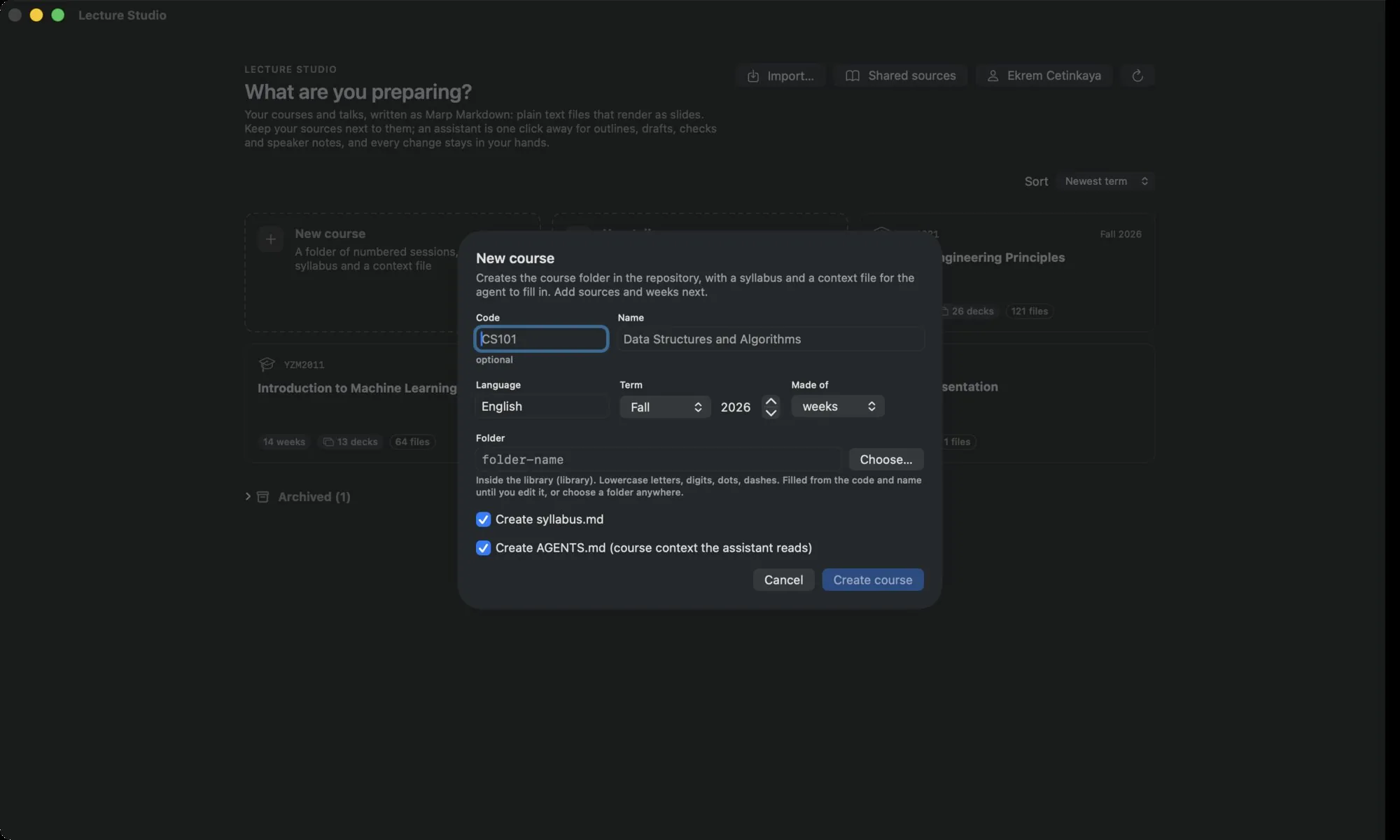
| Field | Notes |
|---|---|
| Code | Optional, uppercased, for example CS101. Shown on cards and in the deck header. |
| Name | The course title. |
| Language | The language the assistant writes in for this course. Defaults to the profile's language. |
| Term | Season and year, or free text. |
| Made of | The unit word: weeks, sessions, modules, lectures, days or parts. New unit folders get this prefix. |
| Folder | The folder inside the library. Choose… picks a folder elsewhere; the library then links to it. |
| Create syllabus.md | A course information form: objectives, learning outcomes, a weekly subjects table, evaluation, references, policies. |
| Create AGENTS.md | Course context the assistant reads: structure, content, slide format, teaching style. |
Create course makes the folder, the two files and the course's studio.json. Add sources and the first unit next.
New talk#
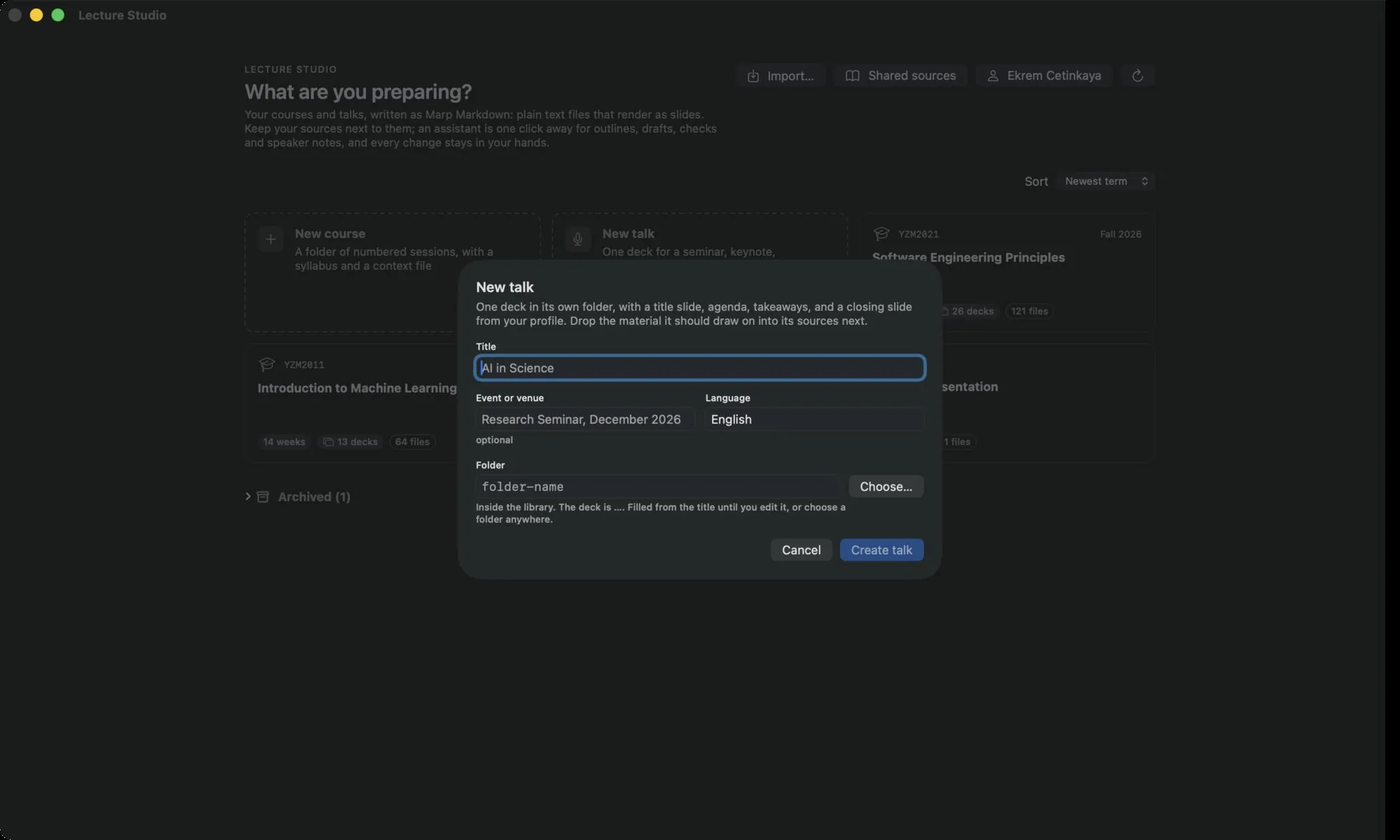
Create talk writes one deck named after the folder, an assets/ folder and a sources/ folder, and a studio.json with kind: talk.
Edit a course or a talk#
The pencil next to the title on the course screen opens Edit course or Edit talk.
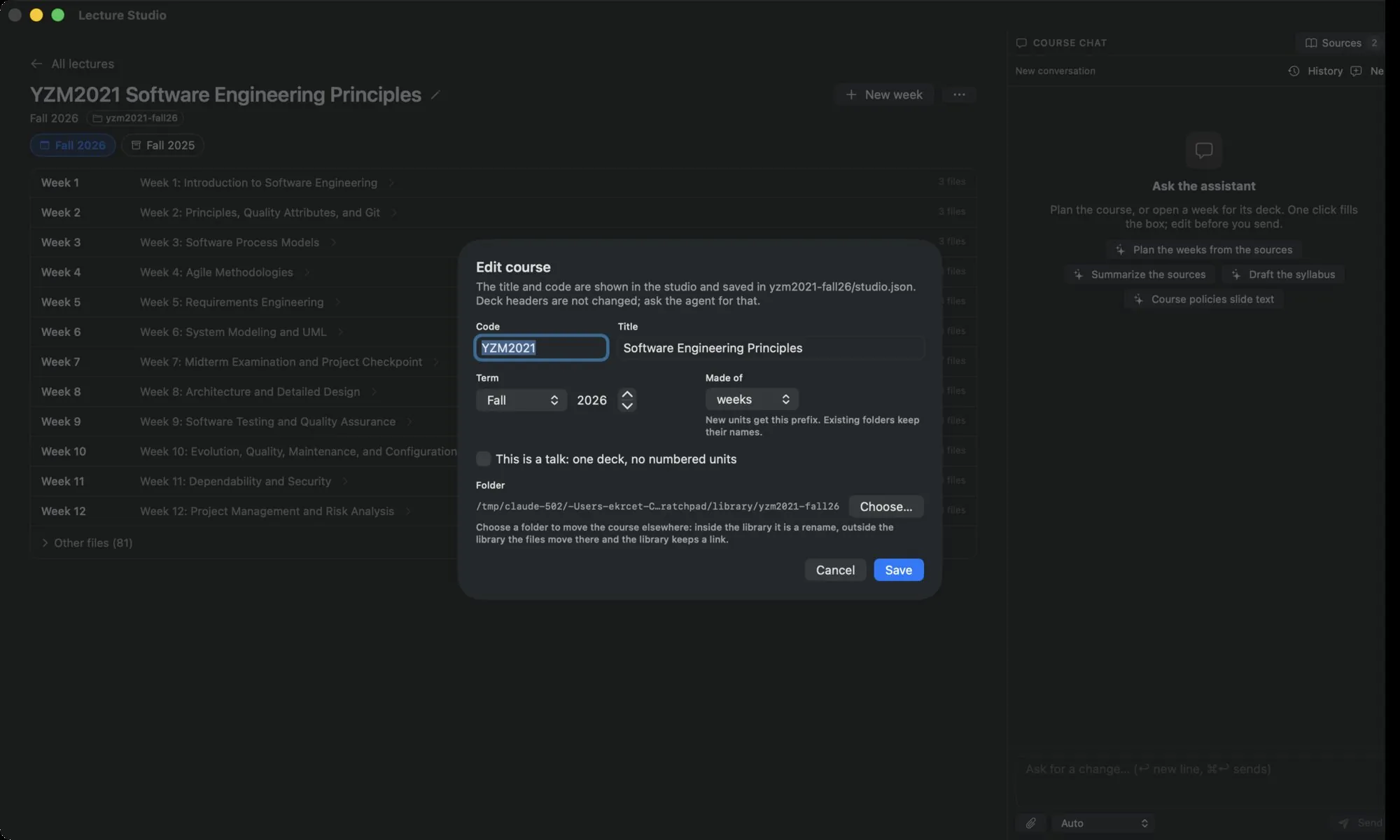
- Code, Title, Term (or Event for a talk) and Made of update the course's
studio.json. Existing unit folders keep their names; only new units get the new prefix. - This is a talk: one deck, no numbered units switches between the two kinds. The same switch is in the course screen's menu as Make this a talk and Make this a course.
- Folder renames or moves the folder. Choose… picks a new place, Keep cancels that. The save button turns red and reads Save and move folder when a move is pending.
Import a course or a deck#
Import… on the library screen asks for a course folder or a single Marp deck (.md), then opens this dialog.
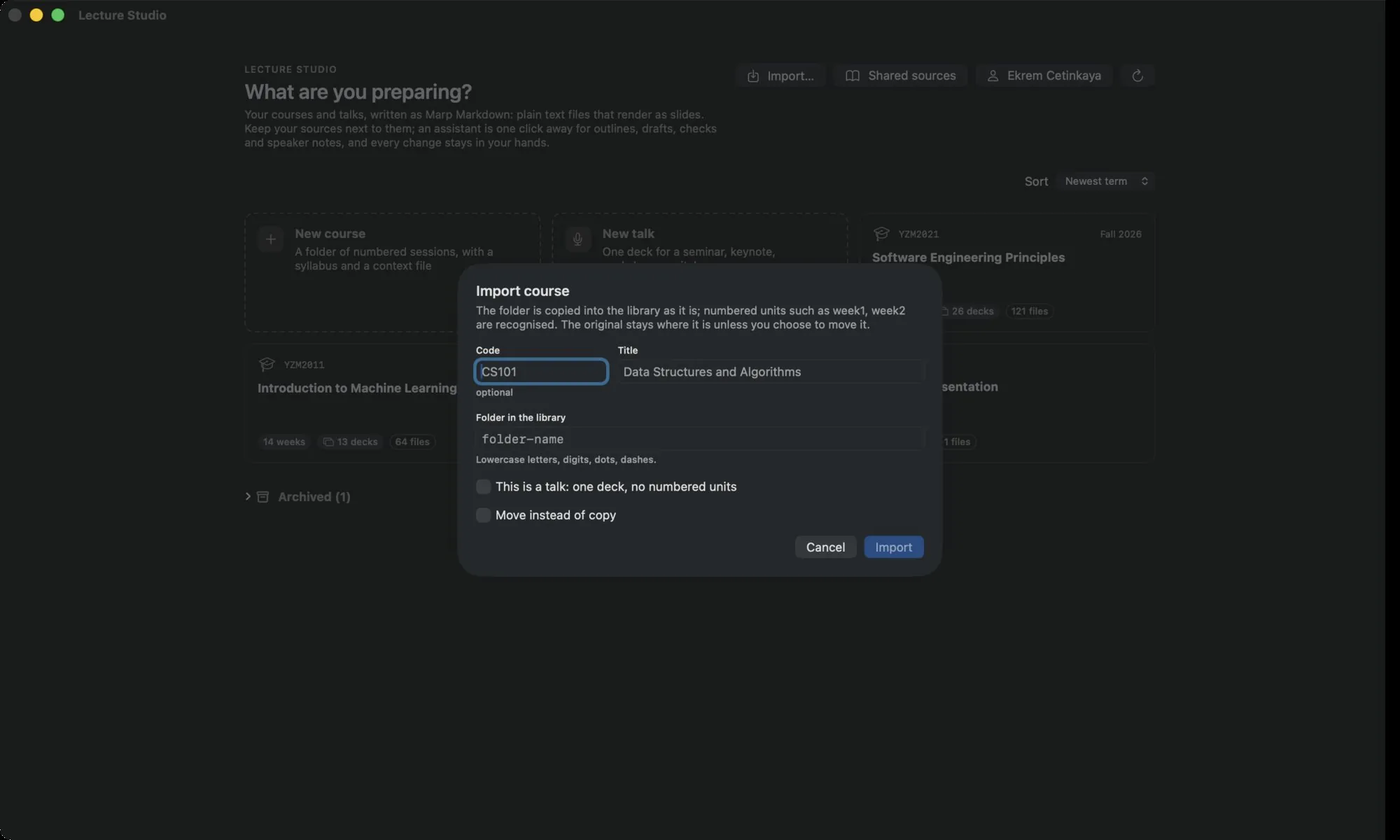
- Folder in the library is the new folder name: lowercase letters, digits, dots and dashes.
- Move instead of copy moves the original into the library instead of copying it. The button then reads Move into library.
Remove a course or a talk#
Remove… in a card's menu, or in the course screen's menu, opens a dialog with two choices.
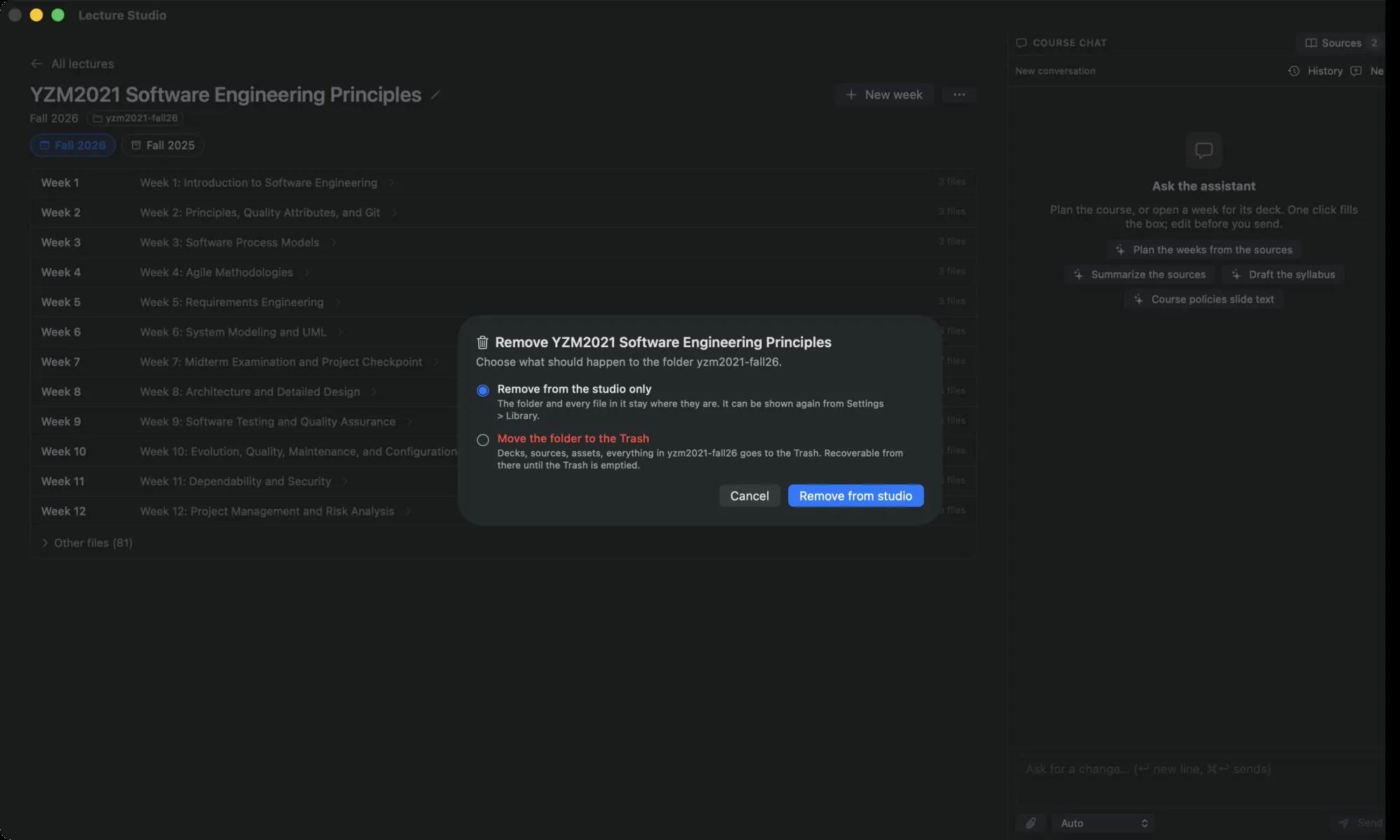
- Remove from the studio only hides the folder. Every file stays where it is, and the folder can be shown again from Settings › Library › Hidden folders.
- Move the folder to the Trash puts the whole folder, decks, sources and assets included, into the macOS Trash. Type the folder name to confirm. It is recoverable from the Trash until the Trash is emptied.
Hide a folder that is not a course#
A library often holds folders that are neither courses nor talks: scripts, a website, tooling. Hide from the studio in the card's menu removes such a folder from the library screen. The list of hidden folders lives in the root studio.json under exclude, and each one has a Show again button in Settings.