
The workspace
The header bar, the three panels and how to arrange them, saving, and reloading a file that changed on disk.
The workspace is where a unit or a talk is written: the assistant on the left, the rendered slides in the middle, the Marp Markdown on the right. Every panel can be moved, hidden or resized, and the arrangement is remembered.
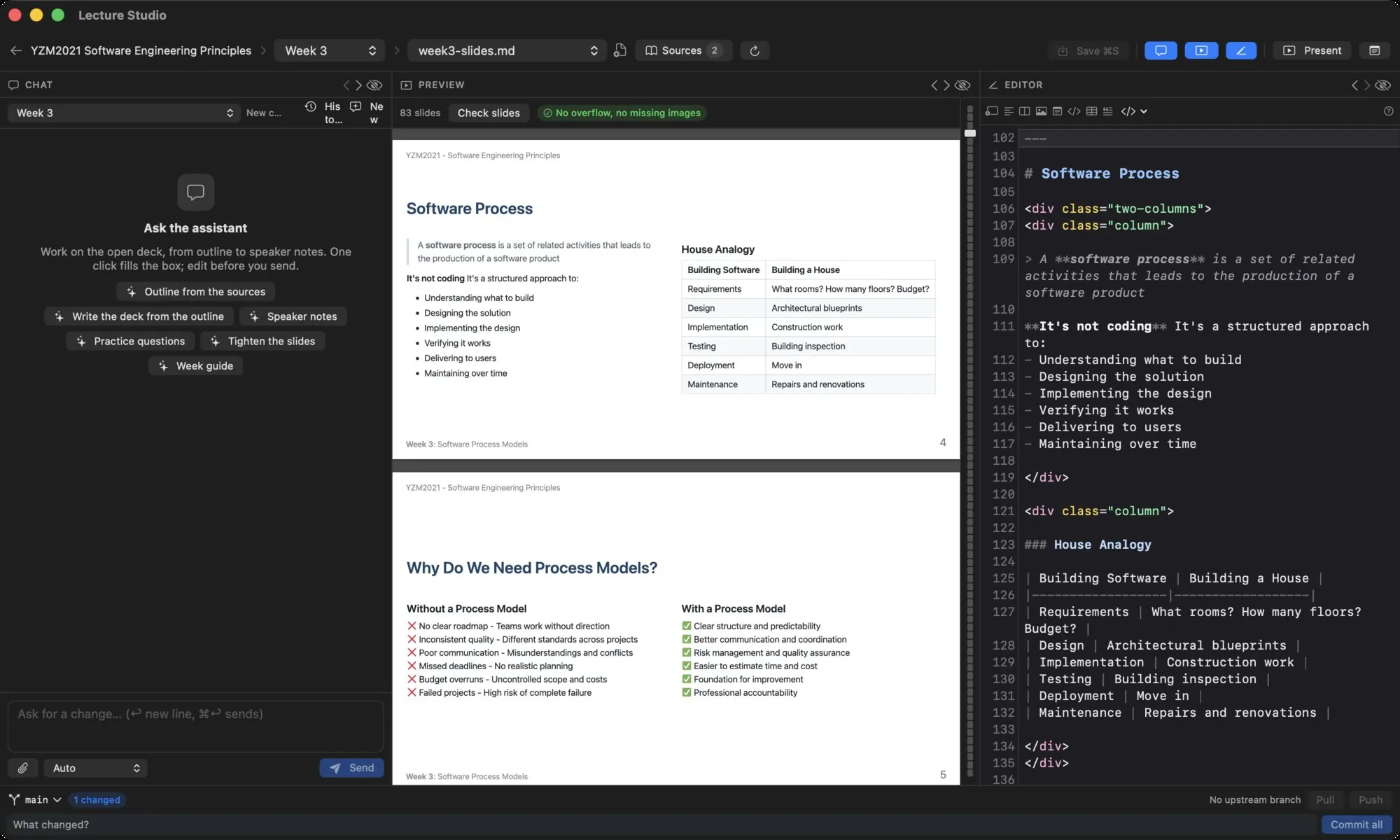
The header bar#

| Control | What it does |
|---|---|
| ← and the course name | Back to the course screen. |
| Unit picker | Switch to another unit of the course. |
| File picker | Switch to another file of the unit. Choose a file when none is open. |
| + (document icon) | New file in this unit. |
| Sources with a count | The sources dialog for the shared, course and unit sources. |
| Refresh (circular arrow) | Read the library folder again (⌘R). Normally not needed; see Library sync. |
| Unsaved | Appears while the editor has changes that are not on disk. |
| Changed on disk, reload | Appears when the open file changed on disk (the assistant, another app, a git pull) while you had unsaved edits. Click to load the disk version and drop your edits. |
| Save ⌘S | Writes the editor to disk. Prominent when there is something to save. |
| Three panel toggles | Show or hide the chat, the preview and the editor (⌥⌘1, ⌥⌘2, ⌥⌘3). |
| Present | Starts presenter mode (⌥⌘P). Decks only. |
| Export | The export sheet: PDF or PowerPoint through marp-cli (⇧⌘E). Decks only. |
| Notes toggle | Shows the speaker notes strip under the preview. Decks only. |
The three panels#
Each panel has a header with its name and three small buttons: Move left, Move right and Hide this panel. The order, the hidden panels and the widths persist across launches. Dividers between panels drag; a panel is never narrower than 240 points.
View › Reset Layout restores the default order and widths and shows every panel. The same menu has toggles for each panel and for Speaker Notes.
Hiding the chat is a good way to get a wide preview and editor for a writing session; hiding the editor gives a review layout with the chat and the slides.
- The editor: CodeMirror with a Marp toolbar.
- The preview: the rendered deck, Check slides, the slide rail, notes.
- The assistant: the chat.
Saving#
The editor never writes on its own. ⌘S, the Save button or File › Save writes the file. The preview re-renders as you type, a quarter of a second after the last keystroke, whether or not the file is saved.
When the assistant edits the open file and the editor is clean, the new version loads silently and the preview follows. When you have unsaved edits, the app keeps them and shows Changed on disk, reload instead, so nothing is lost either way.
Unsaved edits are lost when the app quits, so save before quitting; the Unsaved chip in the header is the reminder.
Where you left off#
The app remembers the last course, unit and file per library and reopens them at launch. Switching the library clears every open conversation.