
The preview
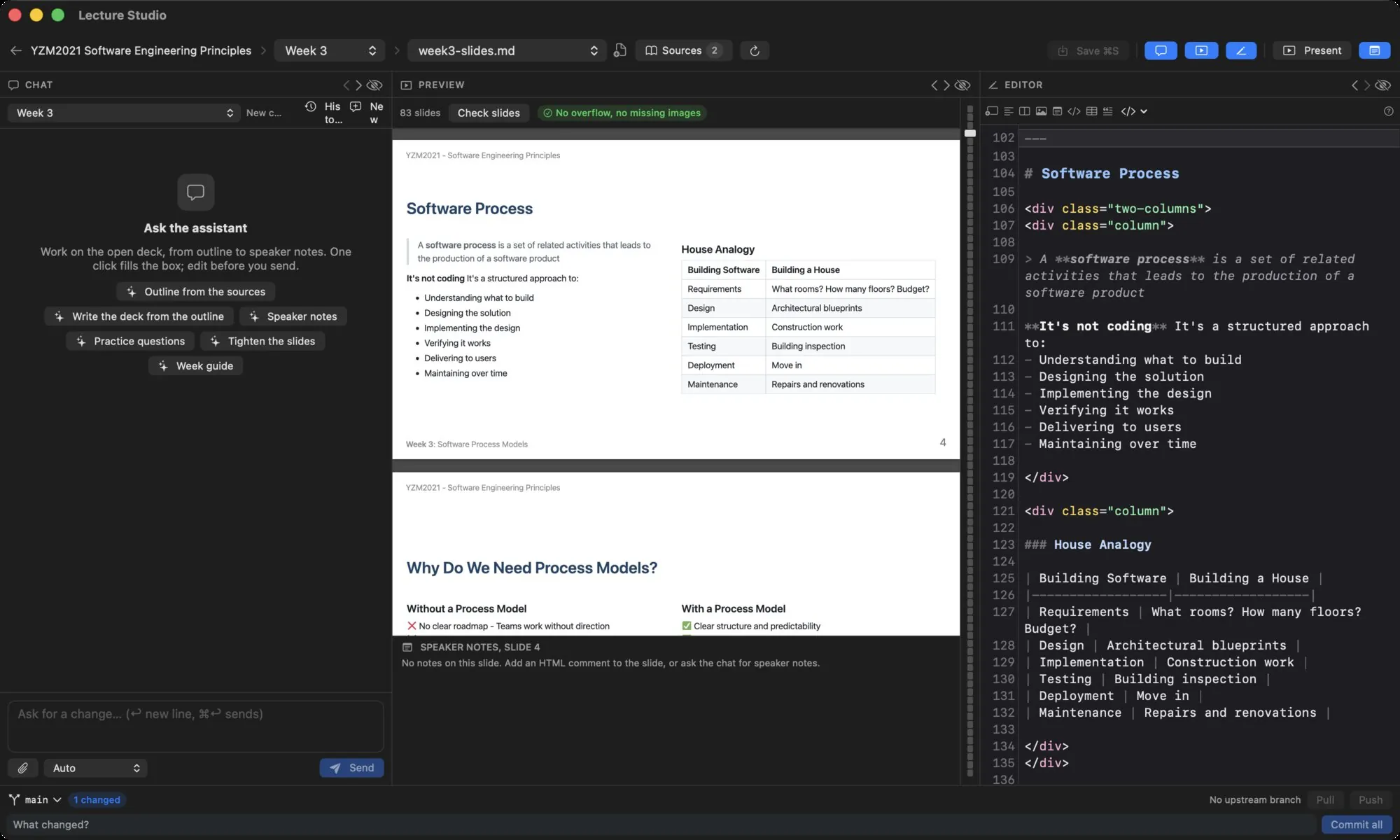
The rendered deck as Marp draws it, the Check slides scan, the slide rail, and the speaker notes strip.
The preview panel renders the open deck with Marp Core, the same renderer marp-cli uses, so what you see is what a PDF export would contain. It updates a quarter of a second after you stop typing.
The bar above the slides#

- The slide count.
- Check slides renders every slide and looks for two problems: content that runs past the slide edge, and images that fail to load. While it runs the button reads Checking….
- The result: No overflow, no missing images in green, or one badge per problem slide. A red number is a slide with overflow; an amber number with a warning triangle is a slide with a missing image. Click a badge to jump to that slide. The badge tooltip names the problem.
- A render error, when the deck cannot be rendered at all, appears here in red.
The same scan is available to the assistant as the qa_deck tool, and the Tighten the slides starter runs it first. Problem slides also get an outline in the preview: red for overflow, amber for a missing image.
The slide rail#
The thin strip at the right edge of the preview has one tick per slide. The current slide's tick is wide and bright; a red tick is a slide with overflow, an orange one a slide with a missing image. Hover for the slide number, click to jump. The editor follows.
Speaker notes#
The notes toggle in the header (or View › Speaker Notes) shows a strip under the preview labelled SPEAKER NOTES, SLIDE N with the notes of the current slide. A slide without notes says so and reminds you that notes are HTML comments on the slide, and that the chat can write them.
Documents and other files#
For a Markdown document the preview renders the document without slide chrome. PDFs open in a page view, images in a scrollable view, and Word, Excel and PowerPoint files through Quick Look. See Units and files.
Images and assets#
Images referenced as ./assets/name.png are served from the unit's assets/ folder. The assistant can save an image it produced or found into that folder with Save to assets; the Markdown to reference it is shown afterwards.
Presenting from the preview#
Present starts presenter mode at the current slide. Moving through the slides while presenting also moves the preview and the editor.