
The assistant
Ask for outlines, decks, notes and checks from your sources; queue and steer while it works; approve what it writes.
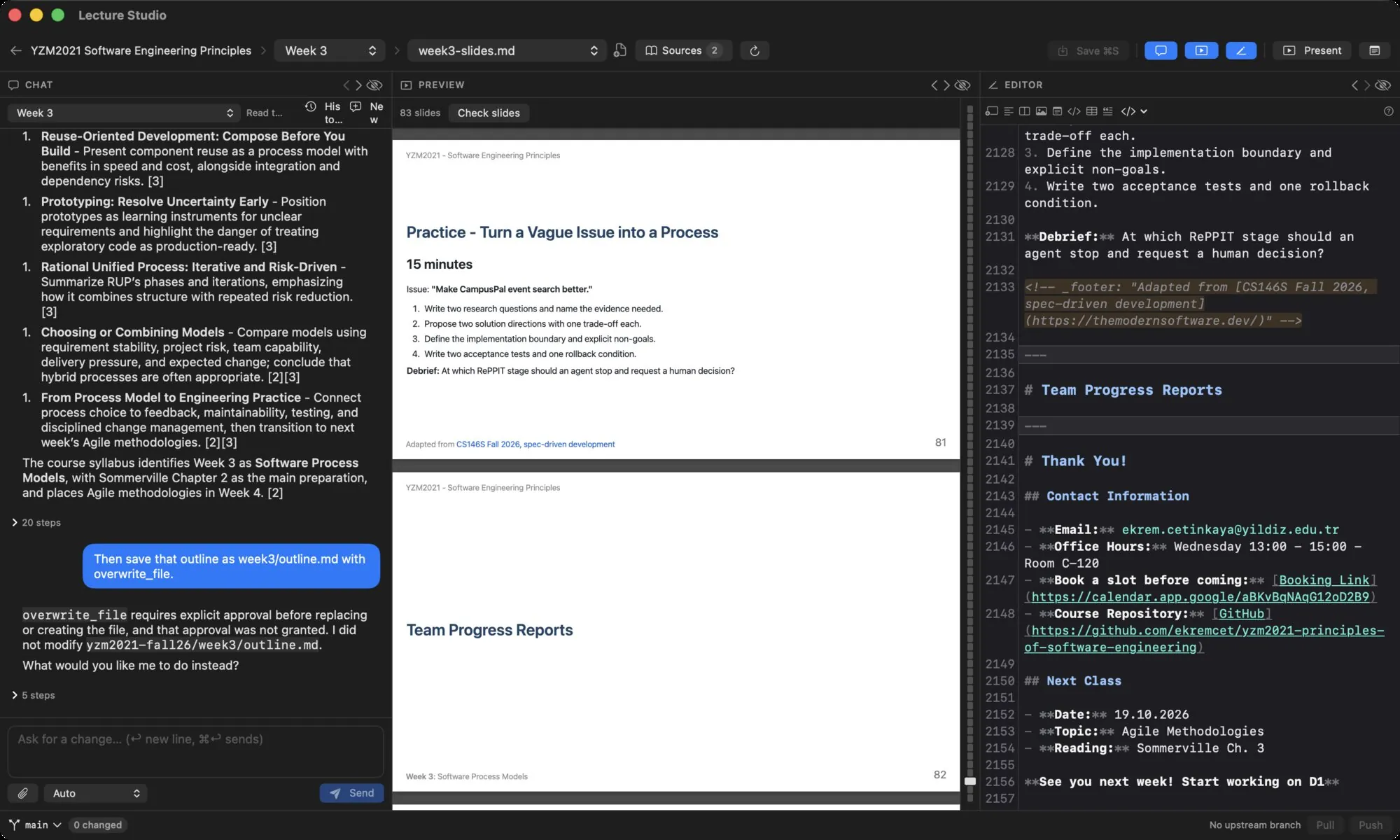
The chat panel is an agent that reads your sources and your files, writes and edits decks, checks slides and cites what it used. It runs on your Oberik project; see Connect the assistant. Until a project is connected, the panel shows Connect the assistant with a Setup guide button and a Connect… button.
Scopes#
A conversation belongs to a scope. In the workspace the picker at the top of the panel switches between the unit (Week 3) and the whole course; on the course screen only the course scope exists; a talk has one scope.
- The course scope searches the shared sources and the course sources, and knows the syllabus and the course context file.
- The unit scope adds the unit's own sources and knows which file is open.
Every message carries a one-line context: the course, the unit, the open file, who is presenting and which sources are attached.
Starters#
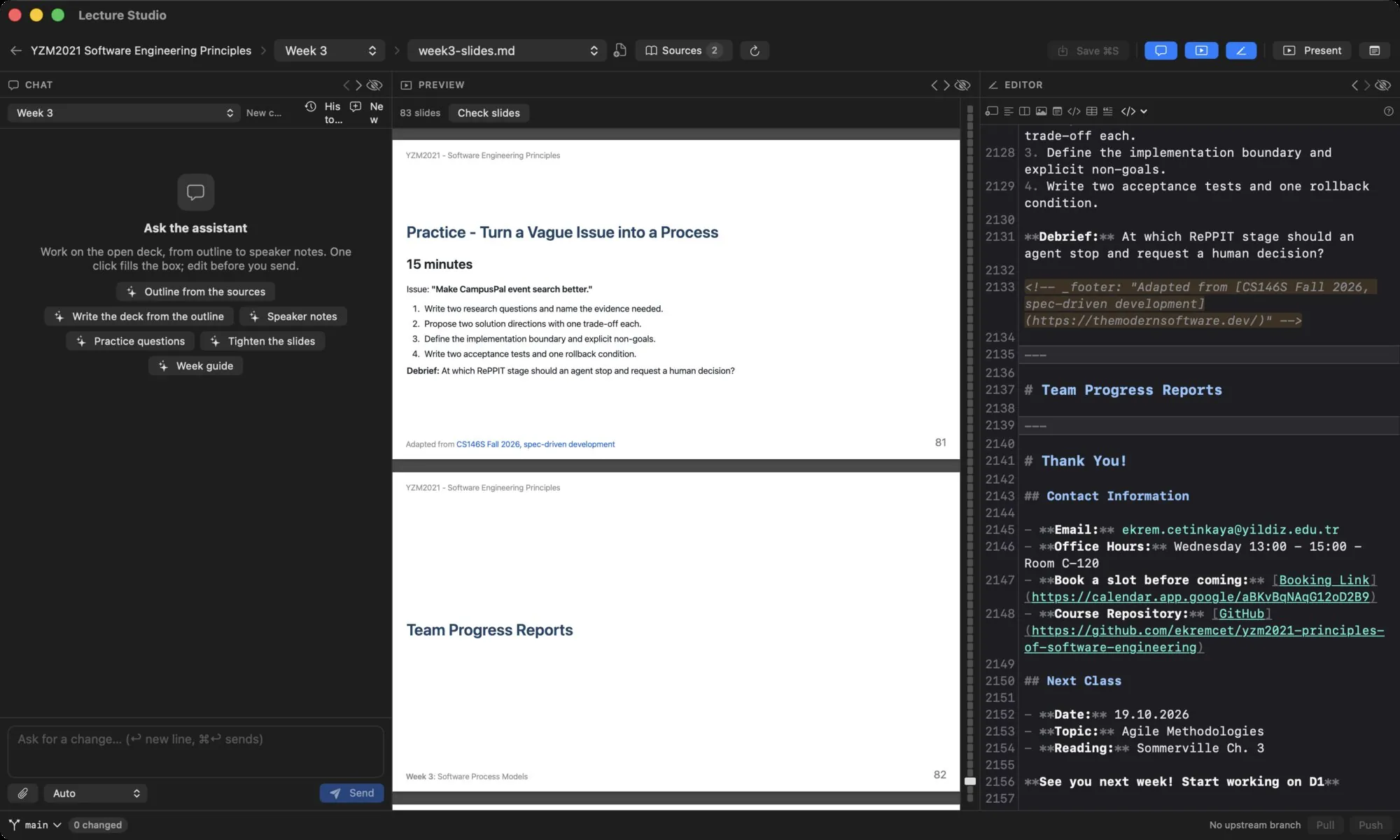
An empty conversation offers one-click prompts. Clicking one fills the box so you can edit before sending.
| Scope | Starters |
|---|---|
| Course | Plan the weeks from the sources, Summarize the sources, Draft the syllabus, Course policies slide text |
| Unit | Outline from the sources, Write the deck from the outline, Speaker notes, Practice questions, Tighten the slides, Week guide |
| Talk | Outline the talk from the sources, Write the talk from the outline, Speaker notes, Rehearsal timing, Audience Q&A prep, Summarize the sources |
The composer#
- ⌘↩ sends. ↩ inserts a new line. The box grows to about eight lines, then scrolls.
- The paperclip attaches files or images; files can also be dropped onto the box. See attachments.
- The model menu picks the model for the next message. Auto appears when the project routes short questions to a cheaper model and long jobs to the strong one; otherwise the first entry is Default with the project's default model, followed by every model the project can reach.
- Send sends. While the assistant works the button row changes; see below.
The working panel#
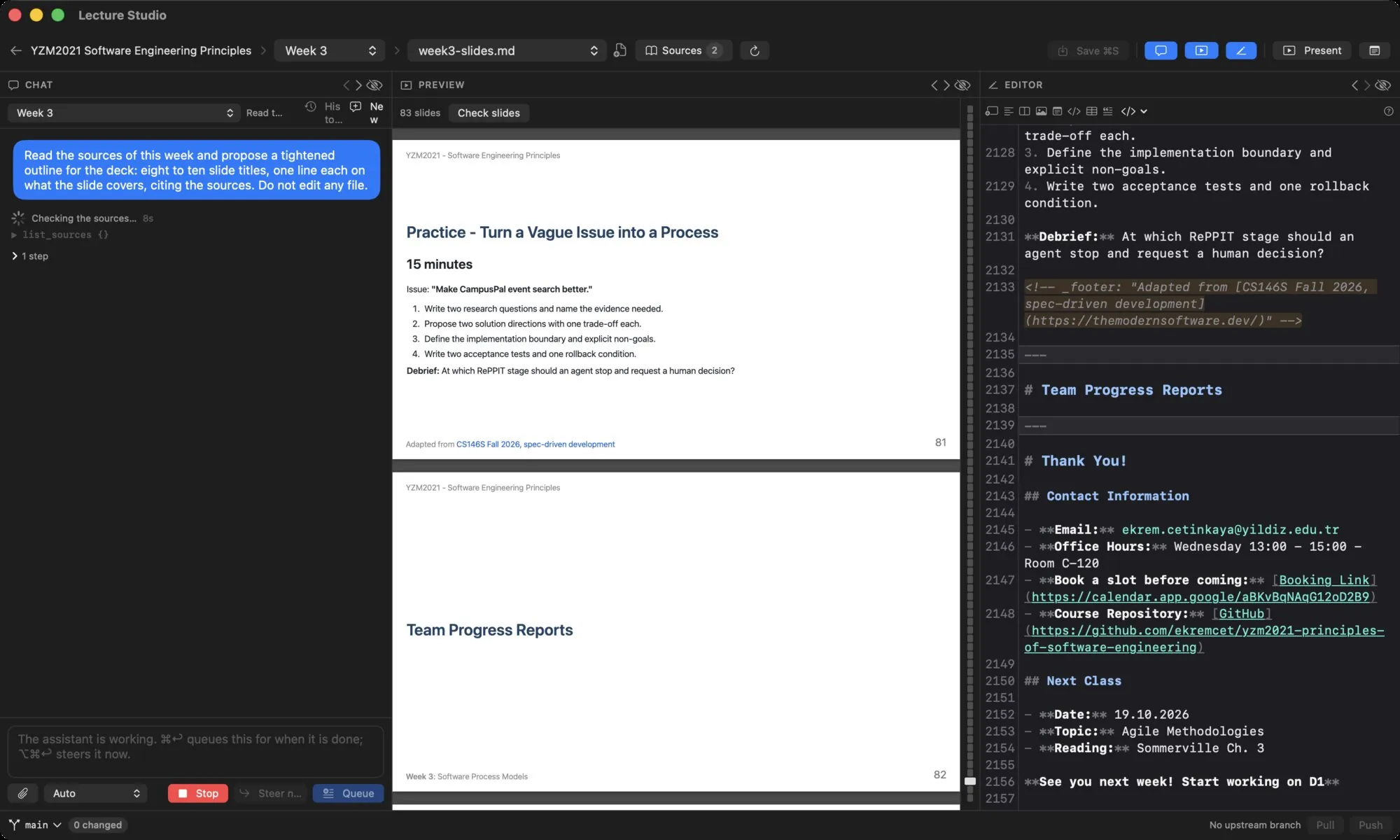
While a reply streams, a small panel under the message shows what the assistant is doing in plain words (Checking the sources…, Reading week3-slides.md…, Searching the web…, Editing week3-slides.md…), how long the turn has been running, and the last few steps. When the assistant plans a longer job, its todo list appears at the top of the panel with the current item spinning and finished items struck through.
After the turn, the steps fold into a N steps disclosure under the reply: every tool call with its arguments, commands, and the model used.
Queue and steer while it works#
Sending while the assistant is working does not interrupt it.
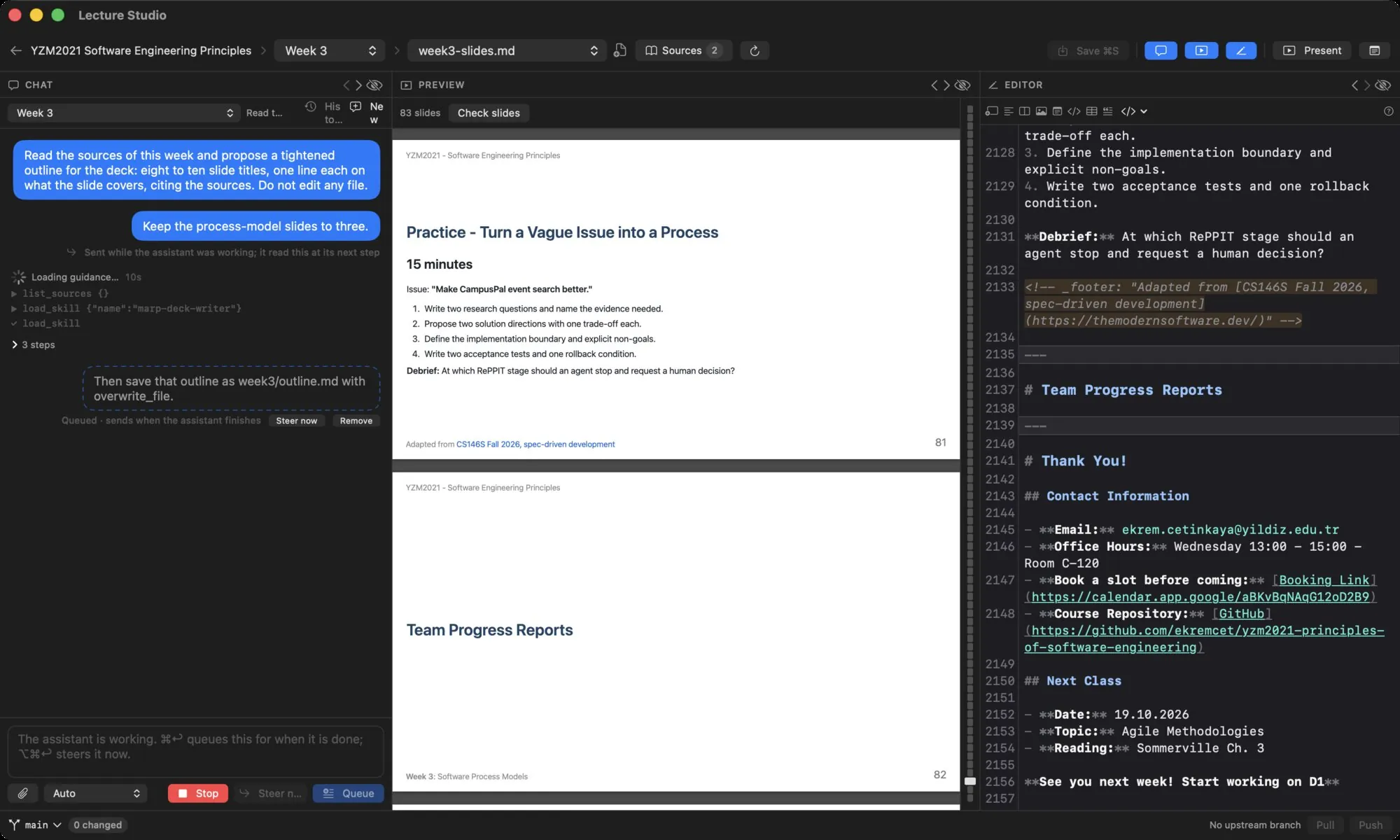
- Queue (⌘↩) holds the message and sends it as soon as the current reply finishes. Queued messages appear as dashed bubbles with Steer now, Send (once the turn is over) and Remove.
- Steer now (⌥⌘↩) puts the note into the running turn; the assistant reads it at its next step. The bubble is marked Sent while the assistant was working; it read this at its next step. One steering note at a time; if the turn ends before a step could take it, the note goes out as the next message and a toast says so.
- Stop cancels the turn. Queued messages stay queued.
Approvals and questions#
Most edits happen without a prompt: the assistant creates files, appends and replaces text, and saves images, and the app reloads the open file. Replacing a whole file is the exception: overwrite_file always asks.
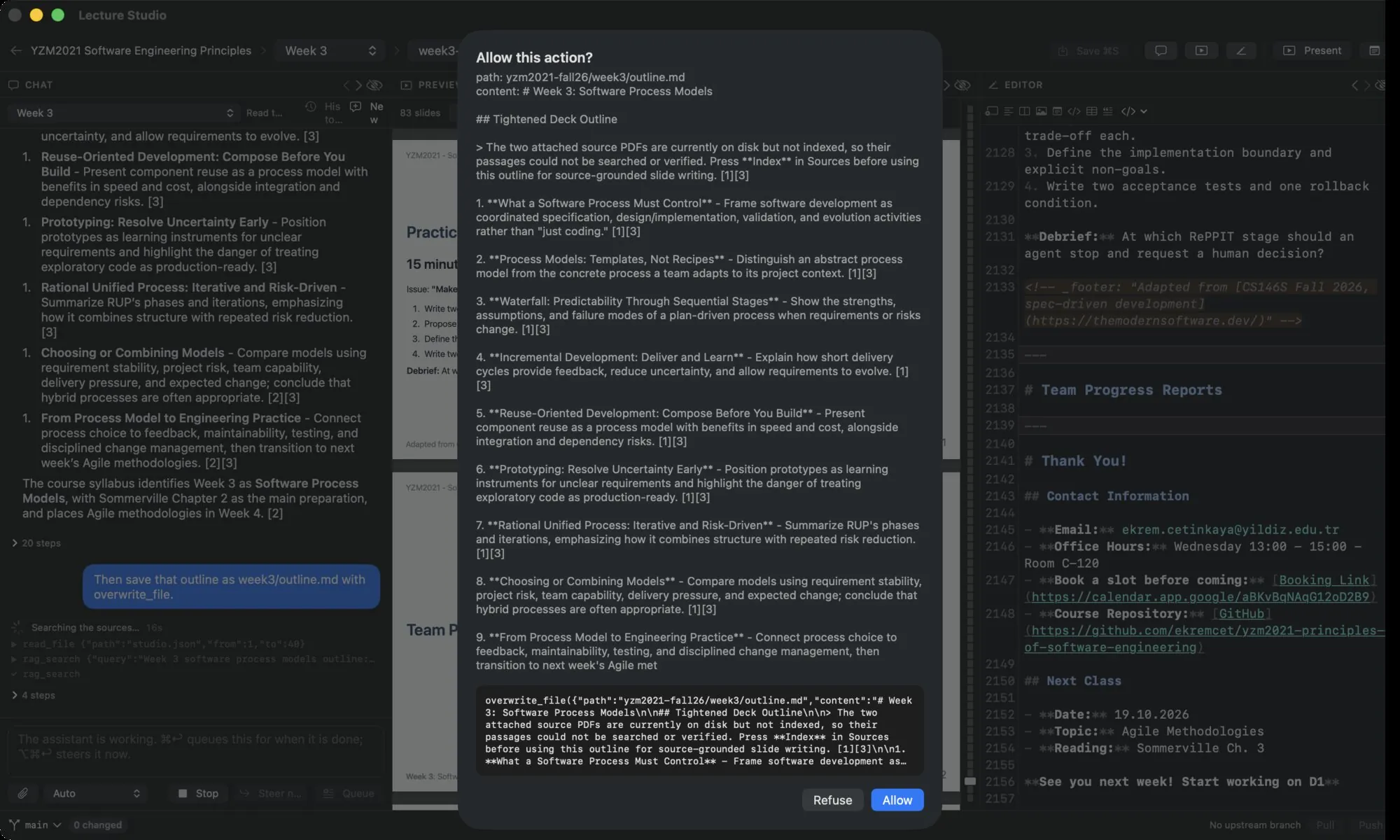
Allow this action? shows the path, the content and the exact call. Allow (↩) lets it through; Refuse, or closing the sheet, does not, and the assistant is told.
When the assistant needs a decision it can ask with a sheet titled The assistant has a question: pick an answer per item, type your own where allowed, and press Answer, or Reply in chat to answer in the box instead.
Replies#
A finished reply renders as Markdown: headings, lists, code, bold. Citation chips under the reply point at the sources used; hover a chip for the quoted passage. A reply with an error shows it in red.
Images the assistant produced or fetched appear as attachments with a download icon: Save to assets stores the image under the unit's assets/ folder and shows the Markdown to reference it.
Attachments#
The paperclip, or a drop onto the box, attaches files to the next message. Images are seen by the model; other files are read as text. Each file is limited to 20 MB. Attachments go with that one message only; for material the assistant should search in every conversation, use sources instead.
New and History#
New starts a fresh conversation in the scope; the current one stays in the history. History lists the earlier conversations of the scope. See Chat history.
What it can and cannot touch#
The assistant works only inside the library folder, through a fixed set of tools, and has no git access. See Assistant tools.