
The library screen
Every course and talk as a card, with sort, import, shared sources, the profile, archiving and hiding.
The library screen is the home of the app: one card per course or talk in the library folder. Click a card to open its course screen or, for a talk, its deck.
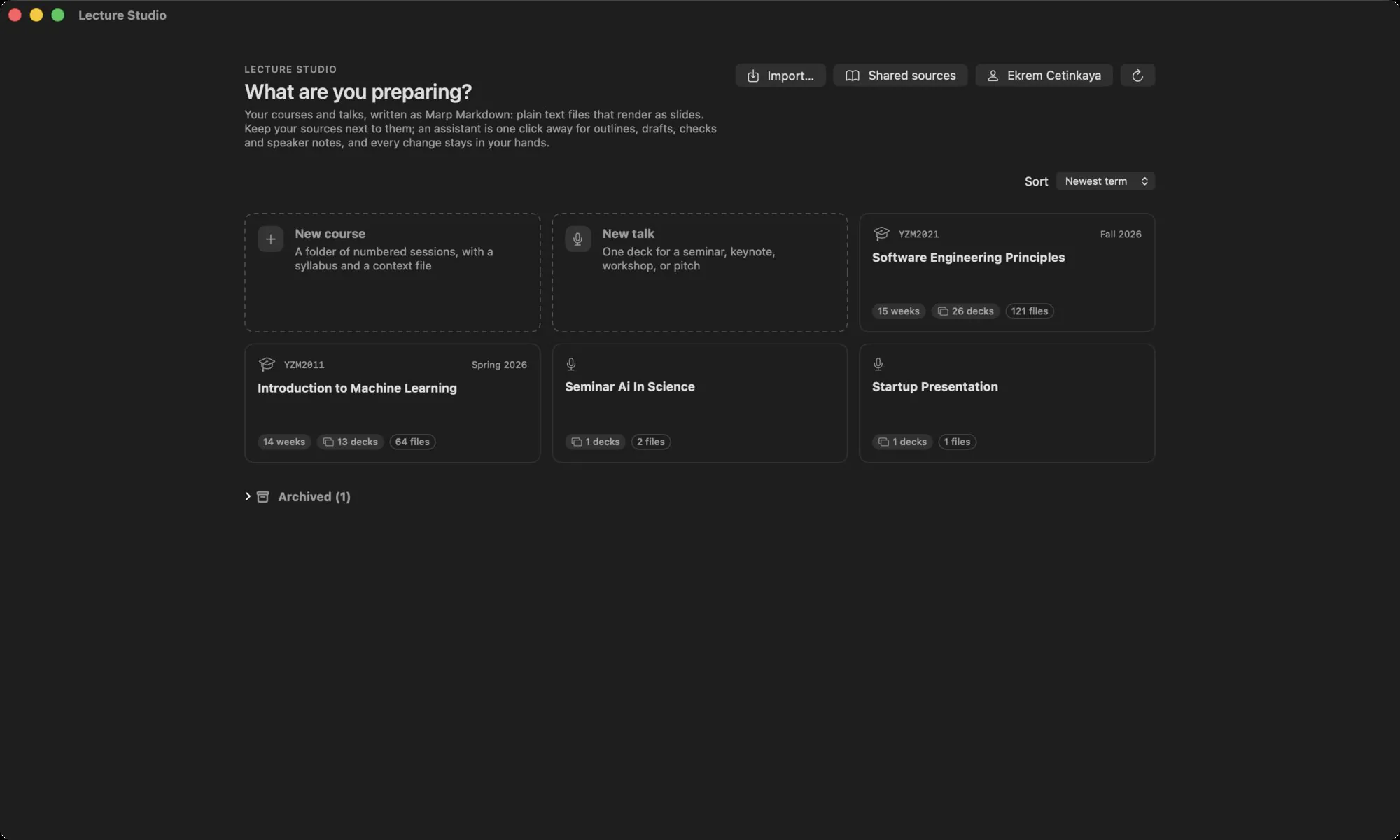
The header#
| Control | What it does |
|---|---|
| Import… | Brings an existing course folder or a single Marp deck into the library. See Import. |
| Shared sources | Opens the sources dialog on the material every course and talk can use. |
| Your name, or Set up your profile | Opens the presenter profile. |
| Refresh (circular arrow) | Reads the folder again, the same as View › Refresh Library (⌘R). Normally not needed: the folder is watched. |
Sort#
The Sort menu orders the cards by Newest term, Last edited, Name or My order. With My order, drag a card onto another to move it, or use Move earlier and Move later in the card's menu. The order is saved with the app's settings, not in the library.
The create cards#
New course and New talk are the two dashed cards. Each opens a dialog that creates a folder with a deck scaffold carrying your name and a place for sources. See Courses and talks.
The card menu#
Right-click a card, or control-click it, for:
- Move earlier and Move later, which switch the sort to My order.
- Archive or Unarchive. Archived courses move to the Archived group at the bottom, collapsed by default.
- New term from this course…, which copies the course into a new term. See Terms.
- Hide from the studio (not a course or a talk), for a top-level folder that is tooling, scripts or anything else the app should ignore. Hidden folders are listed under Settings › Library › Hidden folders, each with a Show again button.
- Remove…, which opens the remove dialog with a choice between forgetting the folder and moving it to the Trash.
Loose files at the root#
Files that sit at the top of the library, outside any course folder, appear on a card titled Repository files, always sorted last. Open it to view or edit them like any other unit.
Empty library#
A library with no courses shows No courses or talks yet under the create cards, and the Getting started checklist above them.