For lecturers, instructors and speakers preparing a course or a talk. Bring your readings, PDFs and notes; draft slides with AI and citations, then review the explanation in one Mac workspace.
macOS 15 or later · Apple silicon AI assistance needs an Oberik project. What to set up
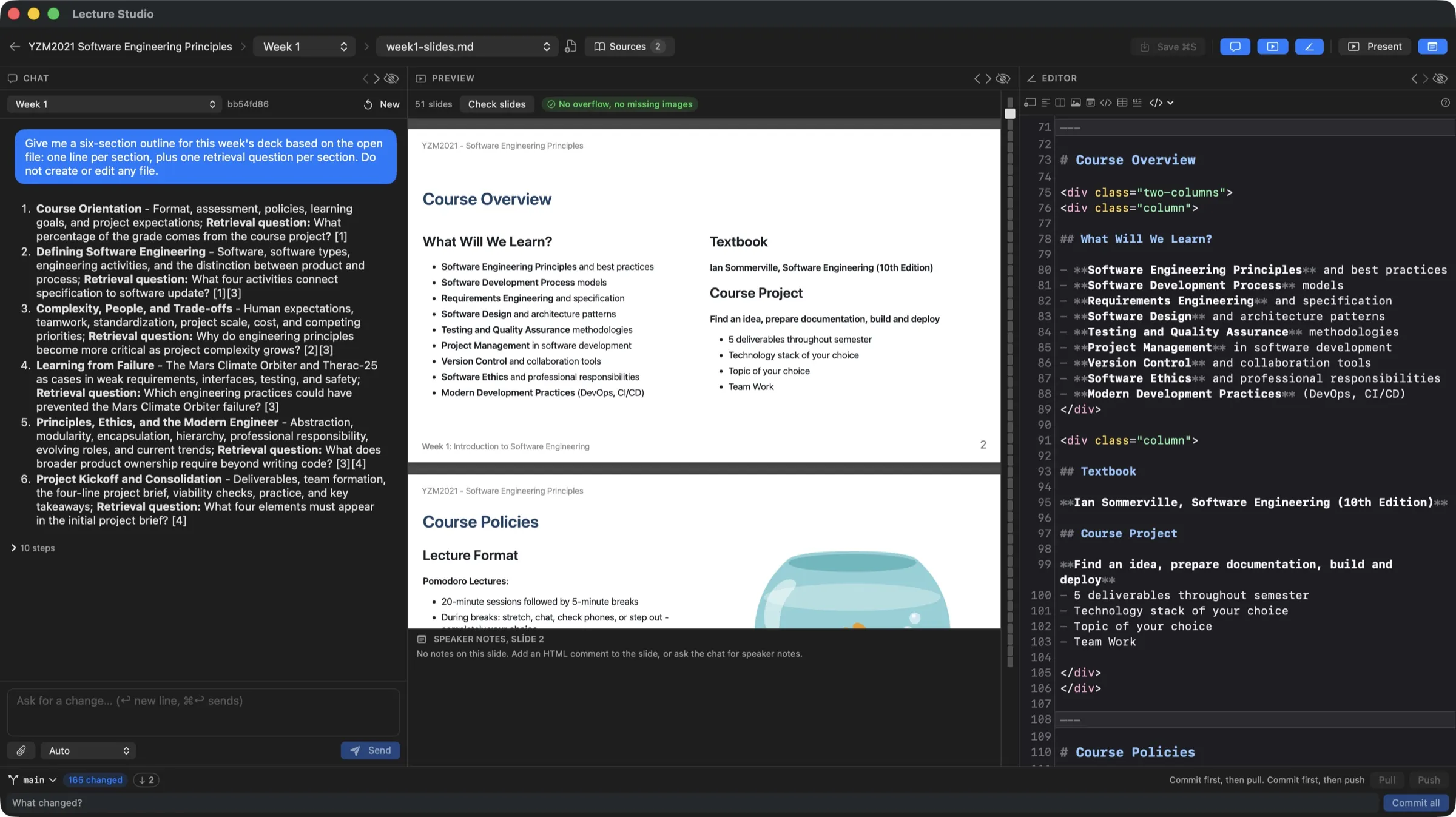
Chat with AI, review the slide preview and edit the Markdown side by side.
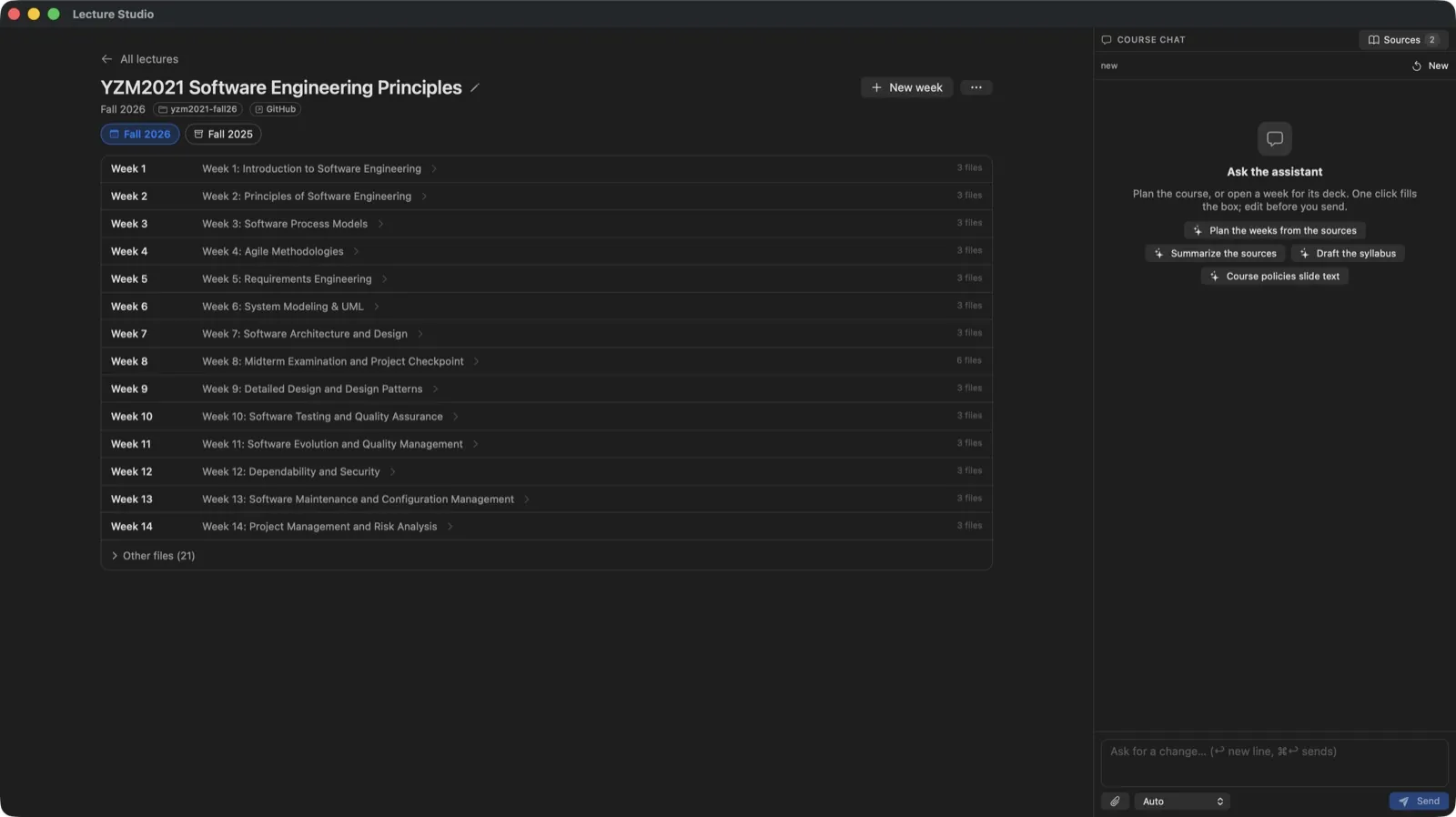
Weeks, readings and sources, kept with the course.
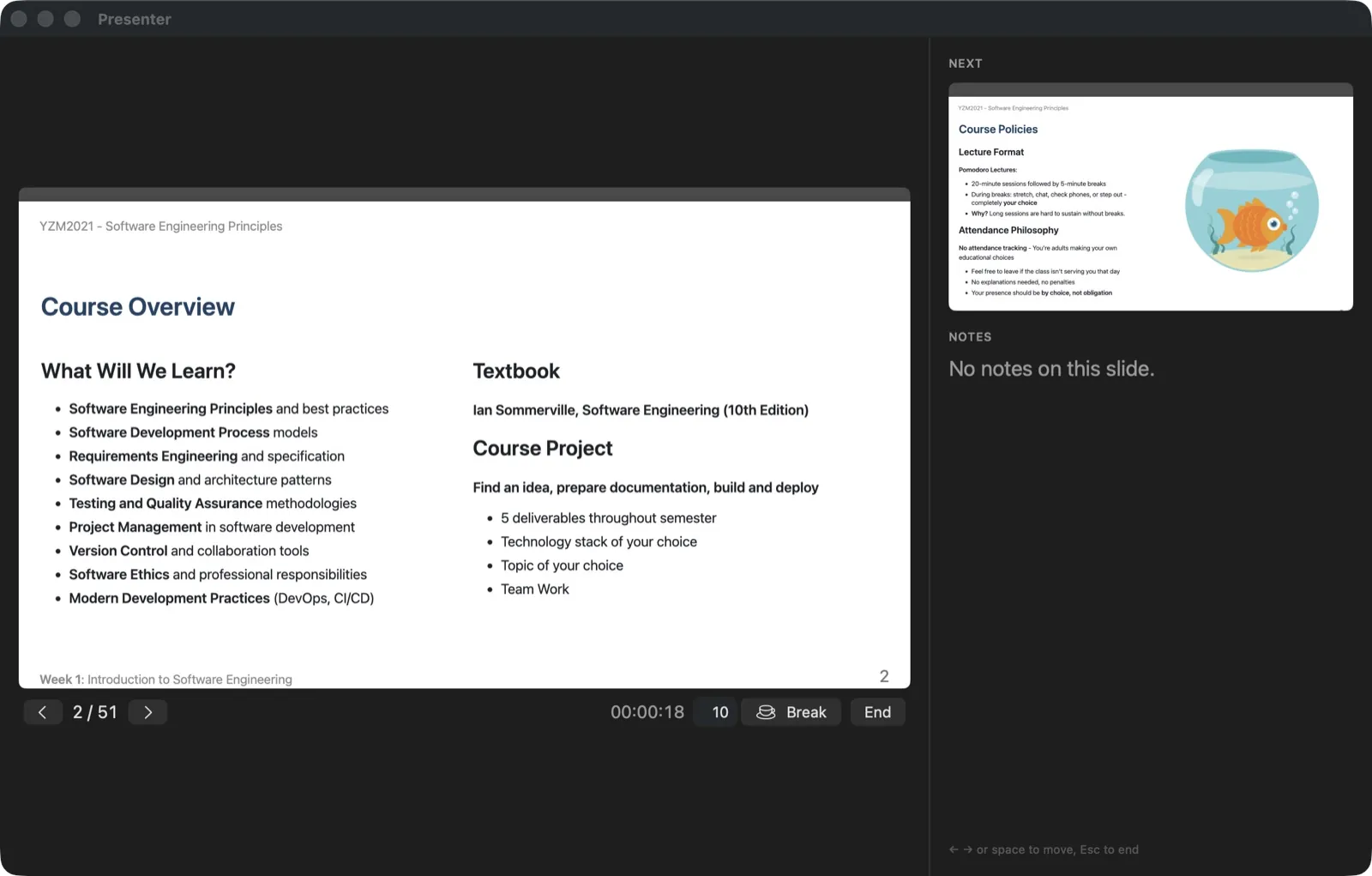
The next slide and your speaker notes, right where you need them.
From readings to a reviewed lecture deck.
Build an outline from your sources, turn it into slides, then revise the content and citations before you teach. The assistant helps prepare the material; you decide what belongs in the lecture.
Organize a course by week, or prepare one talk.
Keep a syllabus, weekly decks and shared readings together for a semester. For a seminar, workshop or conference, create a talk with a single deck. You can also import an existing course folder or Marp Markdown deck.
Interactive example
Software Engineering
Fall semester
Week 1 Introduction
Week 2 Requirements
Week 3 Design
Explaining an idea
Seminar
Deck talk.md
Sources Readings and notes
Preparation Speaker notes
Generate slides from your sources.
Add PDFs, Markdown, Word documents, earlier slides or web pages as sources. Choose material for the whole library, a course or one unit. Oberik indexes those sources so the assistant can search and cite them. Ask for an outline first, then a deck.
A requirement describes a user need and the conditions that must be met.
Sample source: course notes, p. 1
Slide outline
Describe the need
Make success measurable
Write an acceptance criterion
Example outline based on the course notes [1]
Edit the slides and prepare your teaching notes.
Read the rendered slides as you edit. Change the Markdown yourself or ask the assistant to shorten an explanation or add an example. Use the same sources to draft speaker notes, practice questions and an instructor guide. Review generated claims and citations against the originals.
Edit with a live slide preview
Check slides for layout issues
Keep editable source decks as Marp Markdown files
Change the title and see it on the slide. This example is not saved.
My next lecture
Start with a question.
Explain with an example.
Leave room for discussion.
Present with your notes in view.
See your current slide, what comes next, your notes and a clock. A separate audience window keeps the focus on the presentation.
Example deck
Software Engineering
A good requirement
Describe what the user needs and why it matters.
Software Engineering
Make it observable
Replace “it should be fast” with an outcome you can measure.
Software Engineering
Check it together
Give the team and the user a shared definition of success.
Speaker notes
Ask the class to choose an everyday application.
Export slides. Keep the source.
Choose the file for the job. Your library keeps the Marp Markdown, sources and assets so you can revise the lecture later.
PDF
Share a fixed-layout copy for students to read or print. You can include speaker notes as annotations and slide headings as bookmarks.
PowerPoint
Export a PPTX for presentation in PowerPoint. By default, each slide is an image with speaker notes—not a set of editable text boxes.
Marp Markdown
Keep editing the original text-based deck in Lecture Studio or another editor. Keep its image assets and theme files with it when moving the deck.
The download is a Mac app, not an AI account. You need macOS 15 Sequoia or later on Apple silicon (M1 or later); AI assistance has its own setup.
Install the app and choose a library. Open the DMG, drag Lecture Studio to Applications, then create or open a folder for your courses and talks. Git is optional. First-launch guide.
Connect your Oberik project. Configure a model provider and embedding model in Oberik, then add the project ID and key in the app’s Settings. Follow the guide’s one-time skill-pack setup for lecture-writing instructions. Connect the assistant.
Start with one course or talk. Fill in your presenter profile, add sources and ask for an outline. Review it before asking the assistant to write the deck. Create or import your material.
Questions about the Mac app.
Which parts work without connecting the AI assistant?
The editor, slide preview and presenter mode work without an Oberik connection. AI chat and source indexing need a configured Oberik project and a network connection. Adding files as sources uploads them to Oberik for indexing; keeping a library on your Mac does not mean all AI processing stays on the device. Read how the connection works.
Can I bring my existing teaching materials?
Yes. Import a course folder or an existing Marp Markdown deck. PDFs, Word documents, earlier slides and web pages can serve as sources for the assistant. Adding a source is not the same as converting it into an editable slide deck. See supported sources.
Do I need to write code to edit the slides?
Decks use Marp: plain Markdown text turned into slides. You can ask the assistant to revise the deck or edit the text yourself while watching the preview. The initial assistant setup includes a one-time command-line step, documented in the connection guide. Learn the deck format.
Will the PowerPoint file have editable text?
The default PPTX contains one image per slide and keeps speaker notes. The optional editable PowerPoint export is experimental, requires LibreOffice and may not preserve complex themes. Keep the Markdown deck as your editable source. Compare the export options.
How is the Mac app different from lecture.studio?
The Mac app is for preparing, revising and presenting your material. The lecture.studio website is for your lecturer profile, courses, talks and student access. Downloading the app does not create a lecturer page or automatically publish your materials.
Prepare your next lecture on your Mac.
Check the requirements, install the app and connect your assistant before starting with your own sources.