
Units and files
Create the next unit of a course, add files to it, and open decks, documents, PDFs and images.
A unit is one numbered folder in a course: week3, session-2, module1. It holds the unit's deck, optionally an instructor guide, an assets/ folder for images, and its own sources/ folder.
New unit#
New week on the course screen (the label follows the course's unit word) opens this dialog.
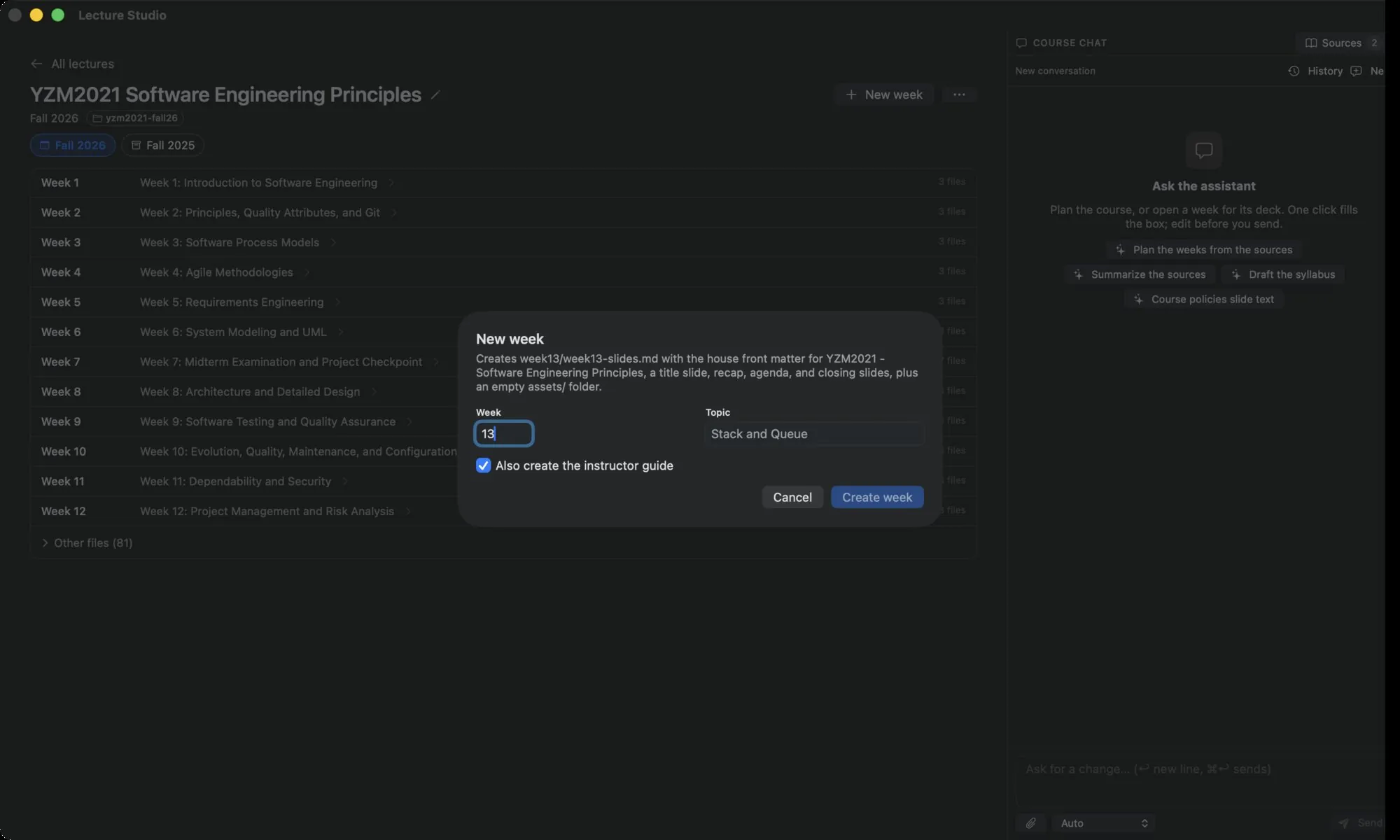
- The number defaults to the last unit plus one.
- Topic becomes the deck's title and footer.
- Also create the instructor guide adds
weekN-instructor-guide.md, a plan in six 20-minute blocks with facilitation notes, a minimum viable path and an extension.
Create week writes the folder and weekN-slides.md, a Marp deck with a title slide, an agenda, a recap slide for weeks after the first, a two-column concept slide, a summary, a preview of the next week and a closing slide with your contact lines. See Marp decks for what the scaffold contains.
New file#
The + button next to the file picker in the workspace header adds a file to the open unit.
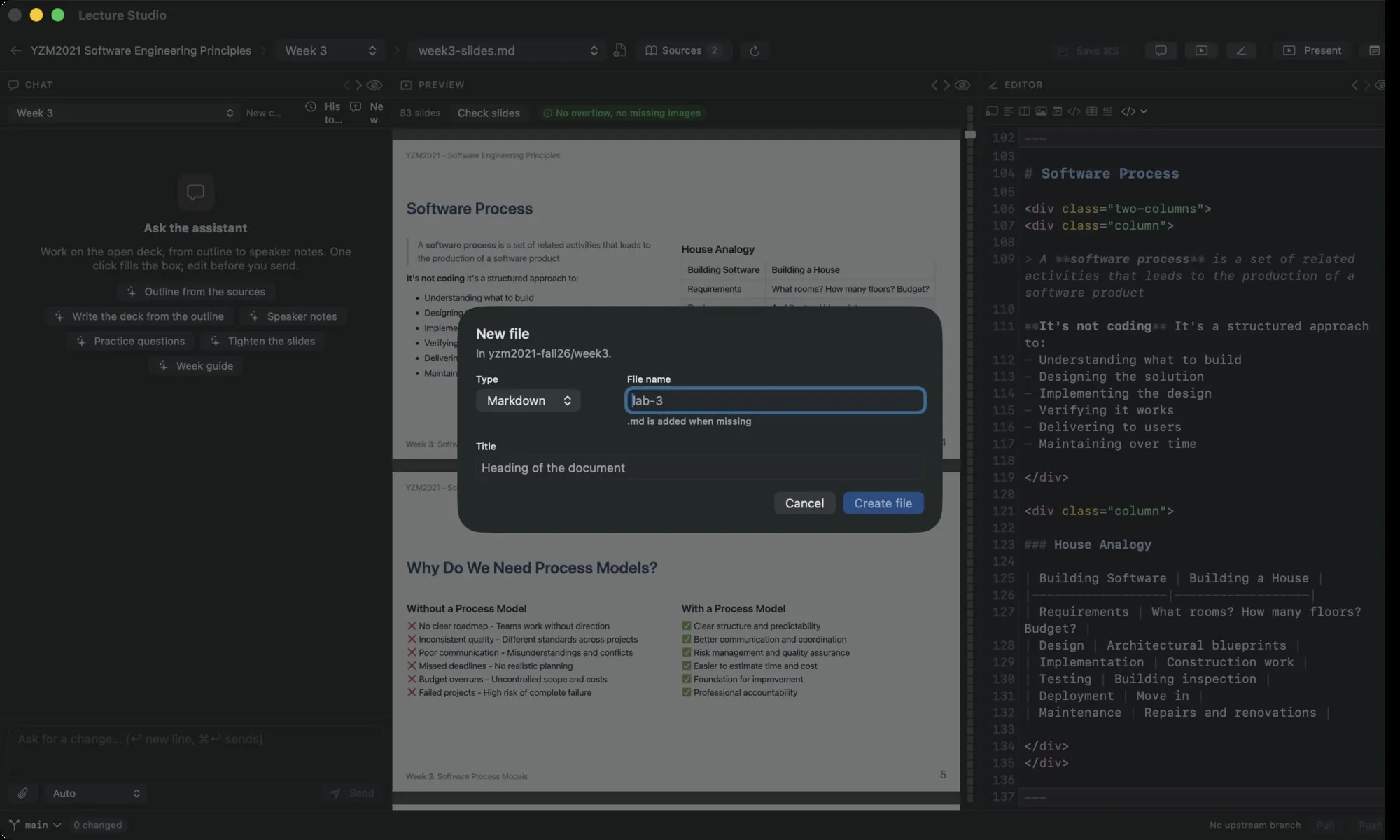
- Type is Markdown (a document with the topic as its heading) or Marp deck (a full deck scaffold).
- File name gets
.mdadded when it is missing.
The file picker#
The workspace header has two pickers: the unit and the file. The file picker lists every file the app knows in the unit, decks first. Files inside assets/ and sources/ are not listed; they are reached through the preview and the sources dialog.
What opens where#
| File | Editor | Preview |
|---|---|---|
Marp deck (.md with marp: true) | CodeMirror with the Marp toolbar | Rendered slides, slide rail, speaker notes |
| Markdown, text, code | CodeMirror | Rendered document |
| none | Page view | |
Image (png, jpg, gif, webp, svg, avif) | none | Scrollable image |
| Word, Excel, PowerPoint | none | Quick Look |
| Anything else | none | No preview for this file, with Open in its app |
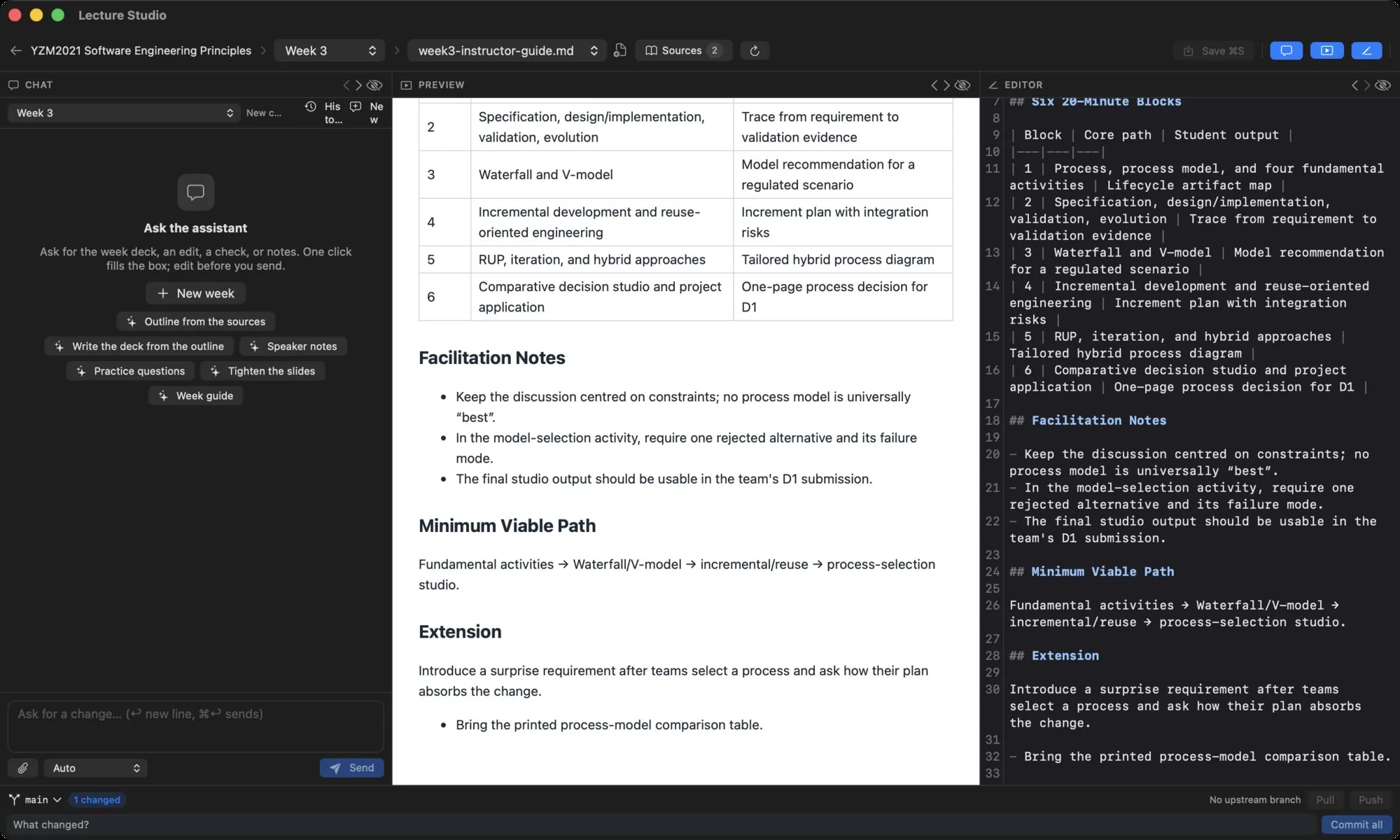
A file with no text editor shows No text editor for this file in the editor panel; use the preview or open it in its own app from there.