
Sources
Readings, papers, notes and web pages the assistant searches and cites, in three scopes.
Sources are the material the assistant reads, searches and cites: PDFs, Markdown, Word and Excel files, slides, and pages fetched from the web. They live in the library under sources/ folders and are indexed on Oberik under your subject so the assistant can search them by meaning.
Three scopes#
The Source materials dialog has three sections. Which ones are searched depends on where the conversation is.
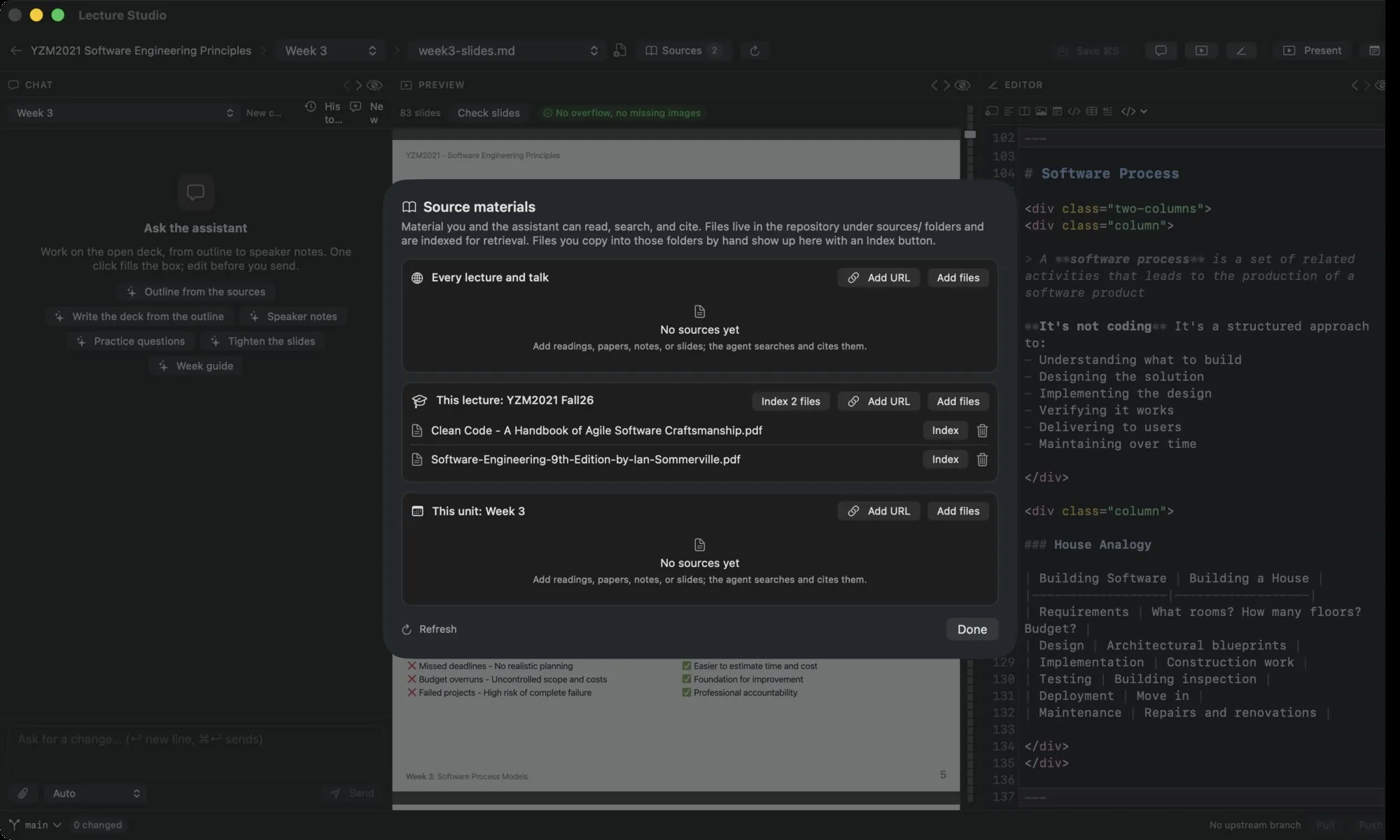
| Section | Folder | Searched |
|---|---|---|
| Every lecture and talk | sources/ at the root of the library | In every conversation |
| This lecture | <course>/sources/ | In every conversation of that course |
| This unit | <course>/<unit>/sources/ | Only when that unit is open |
Open the dialog from Shared sources on the library screen (root section only), from Sources on the course screen (root and course sections), or from Sources in the workspace header (all three). The count chip on the button is the number of sources the open scope can reach.
Add files#
Add files opens a file picker. The chosen files are copied into the section's sources/ folder and uploaded to Oberik for indexing. Files up to 200 MB are accepted. While a file is being indexed its row shows the status; the dialog polls every few seconds until every file is ready or failed.
Files you copy into a sources/ folder by hand, or that arrive with a git pull, show up with an Index button. Index N files at the top of a section indexes all of them at once.
Add from a URL#
Add URL saves web content as a file in the section's folder and indexes it like any other source.
| Type | What is fetched |
|---|---|
| Reference course | A course website. Every page under the same folder (schedule, weeks, readings) is fetched and saved as one Markdown file with a section per page. Stay under limits the crawl to addresses that start with a prefix; up to 80 pages, 3 links deep. A toggle also downloads the documents the pages link to, on the same site, up to 40 files of 40 MB each. |
| Web page | One page, saved as Markdown. |
| Document | A file such as a PDF, downloaded as it is. |
Name is the file name in the sources folder. Add and index fetches, saves and indexes; the sheet shows the progress. A crawl that produced several files is shown as one row with the file count and a combined status.
Status and removal#
Each row shows the file name, its index status (ready, failed with a Retry button, or the stage it is in) and a trash button. Remove deletes the file from the index and from the library folder; in a git repository the file can be brought back with git. Removing a crawled set removes all of its files.
Refresh reads the folders and the index again. Done closes the dialog.
How the assistant uses them#
Each conversation searches the sources of its scope. The assistant's answers carry citation chips under the text; hover one to see the quoted passage. The tags behind this are scope:global for the root folder, course:<folder> for a course and unit:<course>/<unit> for a unit, plus the file path.
Private to the subject
Oberik shows private documents only to the subject that indexed them. If you change the Subject in Settings, the sources indexed so far disappear from search until they are indexed again. See Connect the assistant.
Sources versus attachments
Sources are indexed once and searched in every later conversation. A file dropped into the chat box is an attachment: it goes with that one message, is not indexed, and is limited to 20 MB. See The assistant.