
Terms
Copy a course into a new term with redated decks, compare two terms unit by unit, and archive the old one.
A course lives in one term. When the next term comes, the app copies the course into a new folder, moves the dates in the decks, and links the two folders so they show up as term capsules on the course screen and can be compared.
New term from this course#
Open it from the card menu on the library screen or from the ⋯ menu on the course screen.
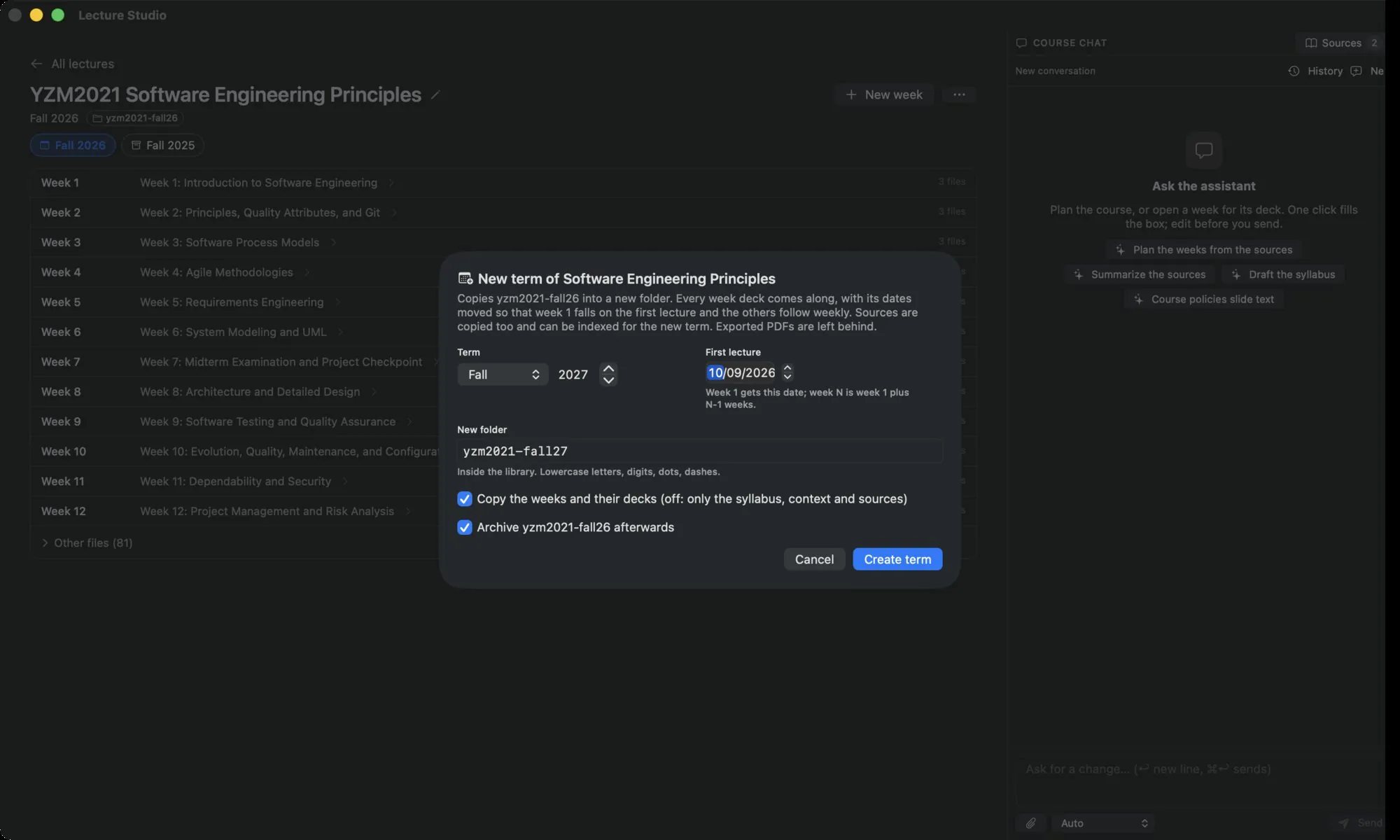
| Field | Notes |
|---|---|
| Term | Season and year of the new term. |
| First lecture | The date week 1 gets. Week N is week 1 plus N−1 weeks; the decks' date lines move accordingly. |
| New folder | Inside the library. Lowercase letters, digits, dots and dashes. |
| Copy the weeks and their decks | Off, only the syllabus, the context file and the sources are copied. |
| Archive … afterwards | Moves the old term to the Archived group. |
Create term copies the folder, redates every deck, and copies the sources so they can be indexed for the new term. The new course's studio.json records derivedFrom and startDate; that link is what makes the term capsules and the comparison work. A toast reports how many units and decks were redated.
Switch between terms#
The course screen shows one capsule per linked term under the title. The current term is highlighted; click another to open it, archived or not.
Compare with another term#
Compare with another term… in the course screen's menu shows every unit of the current term against the same unit in another term of the course.
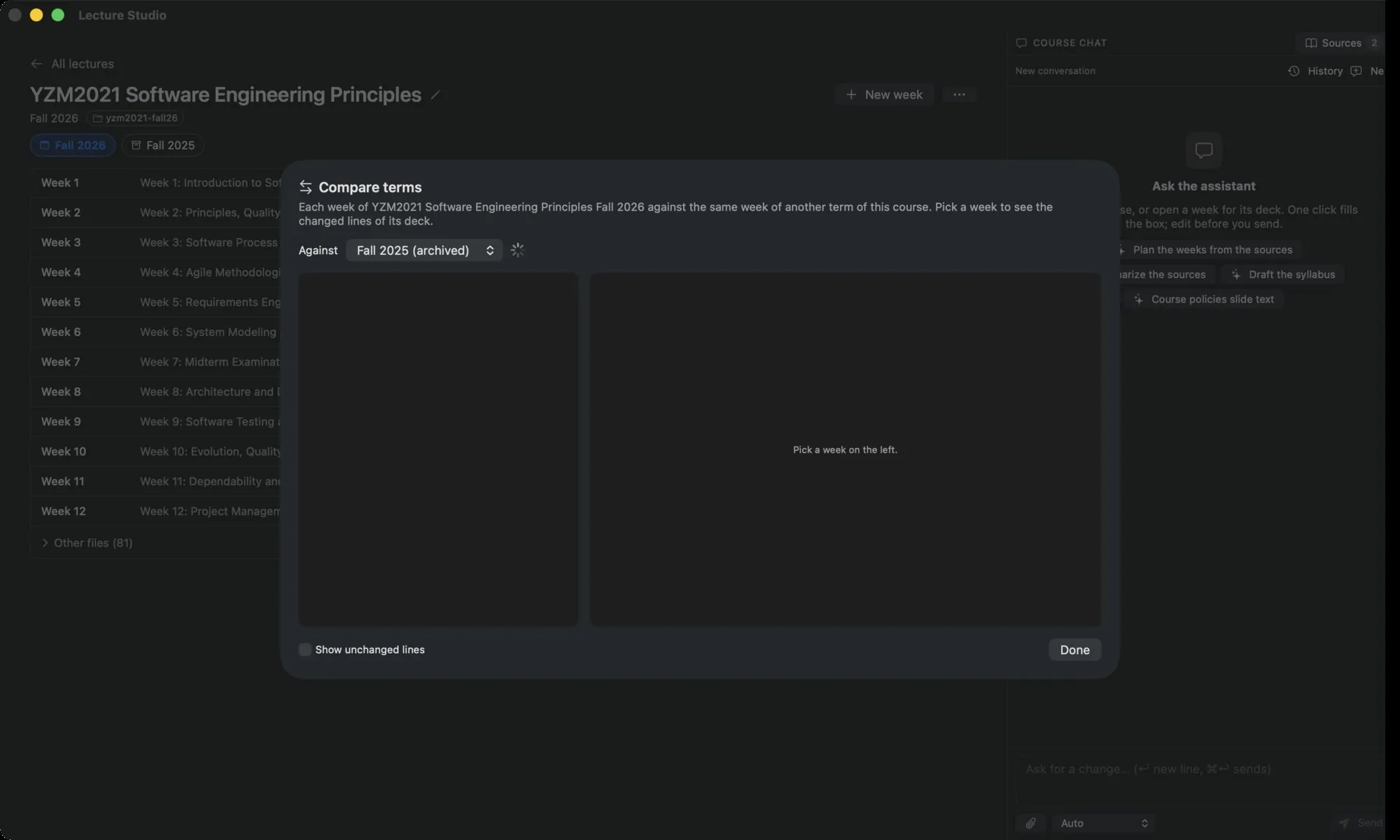
- Against lists the other linked terms; archived ones are marked.
- The left list shows one row per unit with a colour dot and a summary: same, +N −M lines, only in this term, or only in the other term.
- The right pane is the line diff of the two decks, additions in green and removals in red. Show unchanged lines at the bottom shows the whole file.
A course with only one term explains that terms created with New term from this course… are the ones that can be compared.
Archive and unarchive#
Archive in a card's menu or the course menu moves the course to the collapsed Archived (N) group at the bottom of the library. Archiving changes nothing on disk except archived: true in the course's studio.json. Unarchive brings it back.
Publish separate terms on lecture.studio#
On the website, open your existing course and choose New term. The form keeps its code, title, description and number of weeks. Choose the new term and first lecture date. Each term has a separate address, schedule, materials, join link and roster; creating it does not copy students or uploads. New terms start private.
Use the same course code to link the offerings. For example, yzm2021-fall-2026 and yzm2021-spring-2027 can coexist. The course page links to its other visible terms; private offerings are shown only to their owner.
When publishing through the API, send a distinct slug for each term and reuse that slug for updates to that offering. Publishing a different term to an existing term's slug returns HTTP 409 without changing its materials. Omitting term on an update retains the existing term.